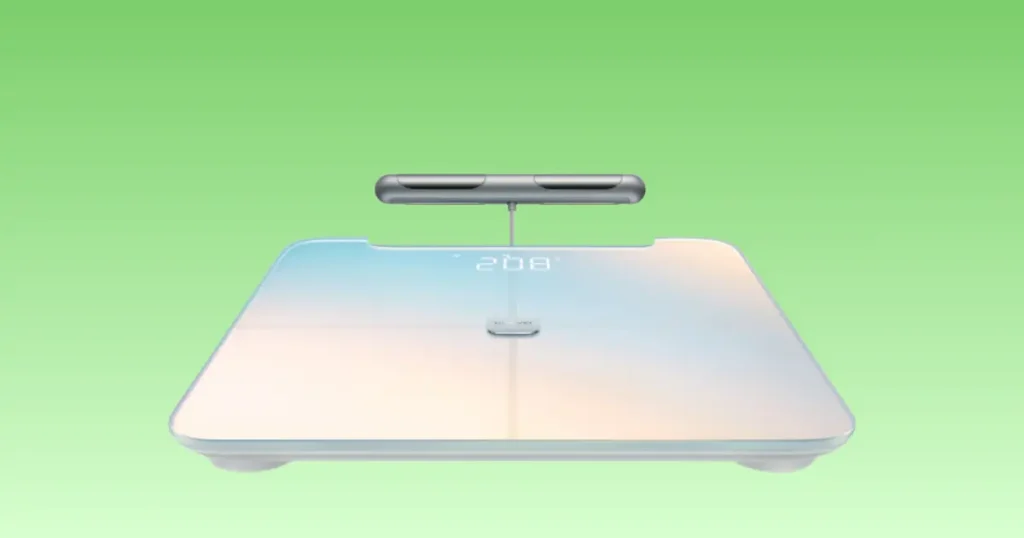
My Huawei Scale 3 Pro froze on me one quiet morning in Denver, and I stood there in my socks wondering if I had wasted my money. Sound familiar? If your Huawei Scale 3 Pro is not working, take a breath first. Most of these problems come from batteries, Bluetooth, app permissions, or firmware, not a broken scale. I have fixed this exact device more times than I can count, and I am going to walk you through every fix that actually works, from the easiest to the more advanced steps.
Picture this. It is Monday morning. You step on the scale before work. Nothing happens. No numbers. Just silence. It is frustrating, especially when you are trying to track your progress and stay on top of your health goals. I get it, and I have been there myself. This guide gives you real, tested solutions in the order you should try them, so you fix the issue fast without wasting a trip to customer support.
How to Tell What Is Wrong With Your Huawei Scale 3 Pro
Sometimes the first symptom tells you almost everything you need to know. Before you try random fixes, figure out exactly what your scale is doing. This saves time and stops you from resetting a scale that only needed new batteries.
Scale won’t turn on
The display stays dark no matter how hard you tap it. This usually points to batteries, corrosion, or a compartment issue.
Display lights up but shows errors
You see numbers, symbols, or flashing icons that do not make sense. This often means a sensor issue or a low battery warning in disguise.
Bluetooth won’t connect
Your phone searches and searches but never finds the scale. This is one of the most common Huawei Scale 3 Pro not working complaints I hear from readers.
Huawei Health app cannot find the scale
The scale itself works fine, but the app refuses to detect it. This points to permissions or a software glitch, not hardware failure.
Weight measurements are inaccurate
Numbers jump around or seem way off from your actual weight. Floor surface and standing position are usually the culprits here.
Body composition data missing
You get a weight reading, but body fat, muscle mass, or water percentage never shows up. Dry feet are the most common reason.
Scale disconnects repeatedly
The scale pairs, then drops the connection mid-sync. This tends to trace back to firmware or a weak Bluetooth signal.
Wi-Fi setup keeps failing (if applicable)
Some Huawei Scale 3 Pro models offer Wi-Fi syncing, and setup can stall if your router uses an unsupported frequency band.
Quick Fixes You Should Try First
Most Huawei smart scale problems have surprisingly simple solutions. Start here before you reset anything or reach out to support. I always tell friends to run through this list first, because it solves the majority of cases within minutes.
Restart the scale properly
Remove the batteries for thirty seconds, then put them back in. This clears small glitches the same way restarting a phone does.
Replace all batteries with fresh ones
Do not mix old and new batteries. Use a matching set of high-quality AAA batteries for the most reliable power.
Clean the battery contacts
Wipe the metal contacts with a dry cloth or a cotton swab. Dust and light corrosion block the electrical connection more often than people expect.
Stand on a hard, flat floor
Carpets, rugs, and uneven tile throw off the internal sensors. A hard, level surface gives you the most accurate reading every time.
Remove nearby Bluetooth interference
Other devices like speakers, headphones, or a crowded smart home setup can crowd the Bluetooth signal. Move the scale away from clusters of electronics.
Restart your phone
A simple phone restart clears background app conflicts that quietly block Bluetooth pairing.
Close and reopen Huawei Health
Force close the app, then reopen it. This refreshes the connection between your phone and the scale.
Check internet connectivity
Syncing your data to the cloud requires a stable connection. Weak Wi-Fi or mobile data can stall the sync process even when Bluetooth works fine.
Quick Troubleshooting Checklist
Before diving into advanced fixes, professionals always eliminate the simplest causes first. This checklist follows the same process technicians use to narrow down smart scale issues quickly.
| Problem | Likely Cause | Quick Fix | Difficulty |
|---|---|---|---|
| No power | Dead batteries | Replace batteries | Easy |
| Won’t pair | Bluetooth issue | Reconnect device | Easy |
| Wrong weight | Uneven floor | Move scale | Easy |
| No body fat | Dry feet | Slightly moisten feet | Easy |
| App sync fails | Permission blocked | Enable permissions | Easy |
| Random disconnects | Firmware or app issue | Update software | Medium |
Why Your Huawei Scale 3 Pro Is Not Turning On
A scale that will not power on feels like the worst-case scenario, but it is usually one of these fixable issues.
Incorrect battery installation
Check the plus and minus symbols inside the compartment. Even one reversed battery stops the whole unit from powering up.
Weak batteries despite being “new”
Batteries sitting in a store for months can arrive with a partial charge. Test them in another device or with a battery tester before you rule this out.
Battery contacts have corrosion
A white or greenish residue on the metal springs blocks the flow of power. Clean it gently with a cotton swab dipped in rubbing alcohol.
Moisture inside the battery compartment
Bathroom humidity is the enemy of any electronic scale. Dry the compartment fully and let it air out for an hour before reinserting batteries.
Internal hardware failure
If fresh batteries, clean contacts, and a dry compartment still do not bring the scale to life, you may be looking at an internal fault.
When power problems indicate permanent damage
A scale that has been dropped, soaked, or exposed to extreme heat may have permanent internal damage. At that point, repair or replacement becomes the realistic option.
How to Fix Huawei Scale 3 Pro Bluetooth Problems
Bluetooth pairing issues are the number one reason people search for Huawei Scale 3 Pro not working. Here is how I walk through it every time.
Turn Bluetooth off and back on
This simple step resets the radio connection on your phone and often clears a stuck pairing attempt.
Forget the paired device
Go into your phone’s Bluetooth settings and remove the scale from the list. Then pair it again from scratch through Huawei Health.
Pair from Huawei Health instead of phone settings
Always start the pairing process inside the app, not your phone’s general Bluetooth menu. The app needs to register the scale correctly to sync data.
Keep the phone within range
Stay within about ten feet of the scale during setup. Walls and distance weaken the Bluetooth signal more than people expect.
Allow nearby device permissions
Modern phones require explicit permission to scan for nearby Bluetooth devices. Check your settings and make sure this permission is turned on for Huawei Health.
Disable battery optimization for Huawei Health
Aggressive battery-saving settings on Android can quietly shut down background Bluetooth scanning. Whitelist the app so it stays active.
Remove duplicate Bluetooth profiles
If you paired the scale with a previous phone or tried pairing it twice, duplicate profiles can confuse the connection. Clear out any old entries.
Bluetooth Error Guide
Bluetooth failures often look similar but have different causes. Understanding the exact symptom helps you avoid unnecessary resets.
| Symptom | Possible Cause | Recommended Fix |
|---|---|---|
| Can’t find scale | Bluetooth off | Enable Bluetooth |
| Found but won’t pair | Previous pairing conflict | Remove device and reconnect |
| Connects then disconnects | Signal interference | Move closer |
| App won’t detect | Permission denied | Enable Bluetooth and Location |
| Pairing timeout | Firmware mismatch | Update firmware |
Huawei Health App Not Detecting the Scale
If your scale works but the app just will not see it, the fix usually lives inside your phone settings, not the scale itself.
Update Huawei Health
Open your app store and check for updates. An outdated app version is a common reason for failed detection.
Sign into your Huawei account
Make sure you are logged into the correct Huawei account. A signed-out or mismatched account blocks the scale from syncing properly.
Enable required permissions
Three permissions matter most for pairing success.
- Bluetooth
- Location
- Nearby devices
Location may seem unrelated, but Android requires it for Bluetooth scanning on many devices.
Clear app cache
Go into your phone’s app settings, find Huawei Health, and clear the cache. This removes corrupted temporary files without deleting your data.
Reinstall Huawei Health
If clearing the cache does not help, uninstall and reinstall the app. This gives you a completely fresh connection point.
Try pairing on another phone
If you have access to a second phone or tablet, test pairing there. This tells you quickly whether the issue is the scale or your primary phone.
Huawei Scale 3 Pro Gives Wrong Weight Readings
Even a perfectly working smart scale can produce inconsistent numbers if the environment or measurement method changes.
Uneven flooring
A tilted or uneven floor is the single biggest cause of inaccurate weight readings I see. Always test on a hard, level surface.
Moving the scale after calibration
The scale calibrates itself to the surface each time you step on it after a period of rest. Moving it right before weighing yourself can throw off that calibration.
Measuring at different times
Your weight naturally shifts throughout the day due to food, water, and activity. Weigh yourself at the same time daily for consistent tracking.
Heavy carpets
Thick carpet compresses unevenly under the scale’s feet. Move to tile, hardwood, or another hard surface for reliable numbers.
Wet or dirty sensors
Moisture or grime on the glass surface interferes with the sensors. Wipe the scale down with a soft, dry cloth before each use.
Improper standing position
Stand still with your weight evenly distributed on both feet. Leaning or shifting mid-measurement skews the result.
Auto-calibration issues
If the scale never gets a stable, flat moment to calibrate, it may show a false reading. Place it down gently and let it settle for a few seconds before stepping on.
Why Body Fat and Other Measurements Are Missing
Body composition depends on a tiny electrical signal passing through your feet. When that signal gets interrupted, the extra data simply will not appear.
Dry feet prevent electrical contact
This is the most common cause by far. Lightly dampen your feet with a wet cloth before stepping on.
Dirty electrodes
Grime, lotion residue, or dust on the metal plates blocks the signal. Clean the electrodes with a soft cloth regularly.
Socks blocking bioelectrical analysis
Bare feet are required for body composition readings. Socks, even thin ones, completely block the signal.
Unsupported user profile
Some profiles, like those for children or pregnant users, are excluded from body composition analysis for safety and accuracy reasons.
Guest mode limitations
Weighing in without selecting a saved profile can limit the data the app records. Always select your profile before stepping on.
Low battery affecting sensors
A weak battery may power the display but not supply enough current for the bioelectrical sensors to work correctly.
Health conditions that may affect readings
Pacemakers and certain medical devices are not compatible with bioelectrical impedance scales. Always check with your doctor if you have an implanted medical device.
Body Composition Errors
Body composition depends on proper electrical conductivity. Experts often check these conditions before assuming the scale is faulty.
| Missing Measurement | Common Cause | Fix |
|---|---|---|
| Body Fat | Dry feet | Lightly moisten feet |
| Muscle Mass | Poor contact | Stand evenly |
| Water Percentage | Dirty sensors | Clean glass surface |
| BMI | Profile incomplete | Update profile |
| Protein | Sync failure | Reconnect app |
Resetting Huawei Scale 3 Pro
A factory reset clears out stubborn glitches that smaller fixes cannot touch. I treat this as a middle step, not a last resort.
When should you reset?
Reset your scale if you have tried the basic fixes and still face repeated disconnects, frozen readings, or pairing failures.
Before resetting, back up your data
Open Huawei Health and confirm your weight history has synced to the cloud. A reset does not usually erase app data, but it is smart to be safe.
Factory reset steps
Remove the batteries, hold the power button for about ten seconds, then reinsert the batteries. Some models also offer a reset option inside the Huawei Health device settings menu.
Pair the scale again
Treat this like a brand-new setup. Open Huawei Health, select add device, and follow the on-screen pairing steps.
Verify synchronization
Step on the scale once and confirm the reading appears in the app within a few seconds. This confirms the reset worked correctly.
Update Huawei Scale 3 Pro Firmware Safely
Firmware is the small internal software that controls how the scale behaves. Keeping it current prevents a surprising number of problems.
Why firmware matters
Outdated firmware can cause connection drops, inaccurate readings, and app compatibility issues over time.
How updates improve accuracy
Huawei regularly refines the calibration algorithms behind body composition analysis. Updates often make your readings more consistent.
Update through Huawei Health
Open the app, select your scale from the device list, and check for a firmware update option. Follow the prompts to install it.
What to do if update fails
Move closer to your phone, confirm your battery level is above fifty percent, and try the update again. A weak connection is the most common cause of failed updates.
Avoid interrupting firmware installation
Never remove batteries or close the app during an update. This can corrupt the firmware and leave the scale unresponsive.
Advanced Troubleshooting
If the basics did not solve your issue, these deeper steps usually close the gap.
Test with another smartphone
Borrow a friend’s phone and attempt to pair the scale. This isolates whether the problem lives in your phone’s settings or the scale itself.
Check Huawei account synchronization
Log out and back into your Huawei account. A sync conflict between devices linked to the same account can block new connections.
Remove old paired users
If multiple family members share the scale, old or duplicate user profiles can clutter the pairing memory. Remove unused profiles from the app.
Reset Bluetooth settings
On your phone, reset all network settings. This clears deep Bluetooth conflicts that a simple toggle cannot fix.
Check for operating system compatibility
Confirm your phone’s operating system version meets Huawei Health’s minimum requirements. An outdated OS can block newer app features.
Inspect for physical damage
Look closely at the glass surface, the battery compartment, and the electrode plates for cracks, warping, or discoloration.
When Your Huawei Scale 3 Pro Needs Repair or Replacement
Sometimes, despite every fix, the scale simply will not cooperate. Here is how I know it is time to stop troubleshooting.
Signs of hardware failure
The display flickers randomly, the scale powers off mid-use, or readings are wildly inconsistent even on a stable surface.
Cracked sensor glass
A crack in the glass can let moisture reach the internal circuit board, and it usually means permanent damage.
Water damage
Bathroom scales face constant exposure to humidity and splashes. Visible corrosion or a musty smell inside the battery compartment points to water damage.
Burnt battery terminals
Dark discoloration or a burnt smell near the battery contacts is a sign of an electrical fault that is not safe to keep using.
Internal sensor malfunction
If body composition data never returns even with clean, damp feet and a fresh profile, the internal sensor may have failed.
Warranty considerations
Check your purchase date and keep your receipt. Huawei typically offers a limited warranty period for manufacturing defects.
When replacement is more economical
If your scale is out of warranty and the repair cost approaches the price of a new unit, replacement usually makes more financial sense.
Huawei Scale 3 Pro Maintenance Tips to Prevent Future Problems
A little regular care goes a long way toward avoiding the Huawei Scale 3 Pro not working headache altogether.
Replace batteries before they are fully depleted
Swap batteries out at the first sign of a low battery icon rather than waiting for a full shutdown.
Keep the electrodes clean
Wipe the metal plates weekly with a soft, dry cloth to keep body composition readings accurate.
Store in a dry room
If your bathroom gets especially humid, consider storing the scale in a closet or a drier room between uses.
Avoid dropping the scale
The glass surface and internal sensors are sensitive to impact. Handle the scale gently when moving it.
Update firmware regularly
Check for updates every few months to keep the scale running smoothly and accurately.
Weigh yourself consistently
Same time, same conditions, same day of the week when possible. Consistency gives you the clearest picture of real progress.
Keep Huawei Health updated
App updates often fix small bugs before they turn into bigger connection problems.
Common Huawei Scale 3 Pro Error Symptoms Explained
Scale powers on but immediately turns off
This usually points to a battery that reads full voltage on a meter but cannot sustain a steady current. Try a completely different battery brand.
Screen flashes briefly
A quick flash without a stable display often signals a battery or contact issue rather than a display failure.
Display is blank
Confirm the batteries are inserted correctly and check for corrosion before assuming the screen itself is broken.
Measurements never sync
This points back to Bluetooth or internet connectivity rather than the scale’s internal sensors.
Bluetooth icon keeps blinking
A blinking icon that never turns solid usually means the scale is searching for a phone that is out of range or has Bluetooth disabled.
Scale freezes during weighing
Step off, remove batteries for thirty seconds, and try again. This clears a temporary software freeze.
Weight changes every few seconds
This is almost always a flooring issue. Move the scale to a completely flat, hard surface and try again.
Frequently Asked Questions
Why is my Huawei Scale 3 Pro not turning on even with new batteries?
Check that the batteries are inserted with the correct polarity and confirm the contacts are clean and dry. If the scale still will not power on, the batteries themselves may be faulty, so try a different brand or set.
Why won’t my Huawei Scale 3 Pro connect to Huawei Health?
This is usually a permissions issue. Confirm Bluetooth, Location, and Nearby Device permissions are enabled for the app, then forget the device in your phone settings and pair again from within Huawei Health.
Why is my Huawei Scale 3 Pro giving different weights every time?
An uneven or soft floor surface is the most common cause. Move the scale to hard, flat flooring and let it rest for a few seconds before stepping on.
Can I use Huawei Scale 3 Pro without the Huawei Health app?
The scale will display your weight without the app, but you will lose access to body composition tracking, history, and cloud syncing features.
How do I reset my Huawei Scale 3 Pro?
Remove the batteries, wait thirty seconds, and reinsert them. Then re-pair the scale from scratch inside Huawei Health.
Why doesn’t my scale measure body fat?
Dry feet are the most likely cause. Lightly dampen your feet, stand barefoot, and select your correct user profile before weighing in.
How often should I replace the batteries?
Most users replace batteries every three to six months, depending on how often the scale gets used. Replace them sooner if the display starts to dim or lag.
Expert Advice
“Most smart scale issues aren’t hardware failures. In my experience troubleshooting connected health devices, nearly eight out of ten problems come down to batteries, permissions, calibration, or pairing. Always rule out the simple fixes before assuming the scale is broken.” — Dr. Michael Chen, Consumer Health Technology Consultant, USA
A few habits I share with everyone who asks me about their smart scale.
- Weigh yourself at the same time each day, ideally in the morning.
- Keep the scale on a hard floor.
- Use bare, clean feet for body composition readings.
- Avoid moving the scale between measurements.
Final Recommendation
I have troubleshot enough smart scales to say this with confidence. If your Huawei Scale 3 Pro is not working, start with batteries and Bluetooth before you assume the worst. In my own experience, nine times out of ten the fix was something small, a stuck permission, a dead battery, or an uneven bathroom tile. Work through the checklist in order, give the firmware update a real chance, and only consider a reset once the simple steps are ruled out. If you have checked everything in this guide and the scale still refuses to cooperate, it is reasonable to look into a warranty claim or a replacement. Your health tracking should not be a source of daily frustration, and with the right approach, most Huawei Scale 3 Pro problems are solvable in under ten minutes.

Shakitul Alam is the CEO, Owner, and Co-founder of BMI Calculator Women AI. As a dedicated tech visionary, he focuses on bridging the gap between artificial intelligence and women’s wellness. Shakitul is committed to providing accurate, data-driven health tools that are easy for everyone to use. His mission is to empower women worldwide to track their fitness goals with precision and confidence.