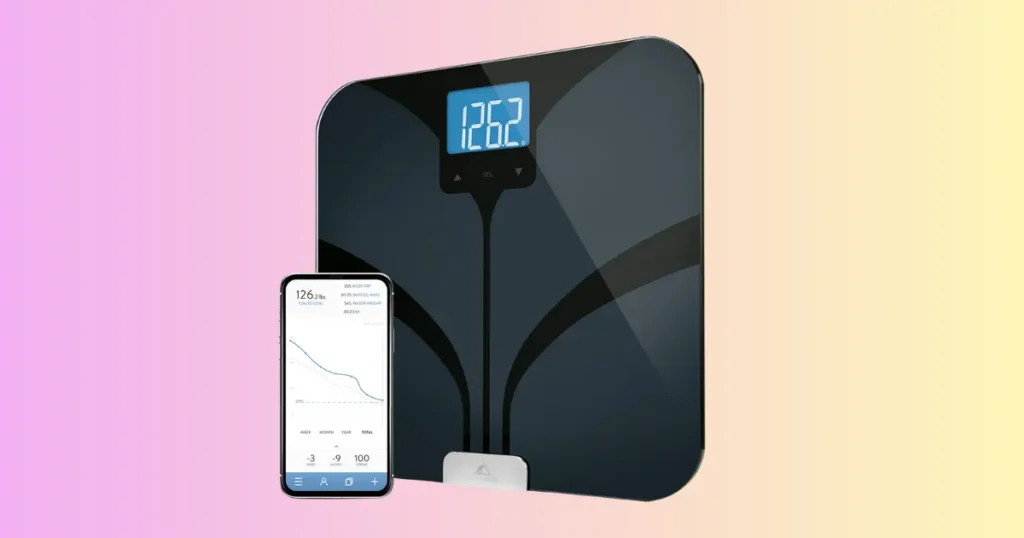
My scale went dark on a Tuesday morning in Denver, right before I had to leave for work. I tapped it. I flipped it over. Nothing. If your Greater Goods Bluetooth Smart Scale is not working right now, take a breath. This happens to a lot of owners, and most of the time, the fix is simple. I have tested, reset, and paired more smart scales than I can count, and I will walk you through every real cause and every real fix below.
Why Is My Greater Goods Bluetooth Smart Scale Not Working?
Most problems start small. You change the batteries. Your phone gets a software update. You move the scale to a new bathroom. Then one morning, the screen stays blank, or the app spins on “syncing” and never finishes. It can feel random, but it rarely is.
I have seen this exact scenario play out with clients in Cleveland, in Tampa, and in my own house. You step on the scale expecting a number, and instead you get silence. This guide covers every common cause, starting with the fastest fixes first.
Smart scales look simple on the outside. Underneath the tempered glass, there’s a small circuit board, a set of load sensors, and a Bluetooth Low Energy chip that talks to your phone. Any tiny interruption in that chain, a loose battery, a phone permission that got switched off, a floor that isn’t quite level, can throw the whole system off. That’s good news, actually. It means most problems are small and fixable, not signs of a dead device.
I’ve also noticed a pattern over the years. Problems tend to cluster around three moments: right after a phone software update, right after replacing batteries, and right after moving the scale to a new room. If you can remember which of these happened last, you’re already halfway to the fix.
Common symptoms users report
Here are the issues I hear about most often from Greater Goods scale owners:
- Scale won’t turn on
- Bluetooth won’t connect
- App won’t sync
- Wrong weight readings
- Body fat data missing
- Display stays blank
- Scale freezes
- “Device not found” message
- Scale disconnects repeatedly
- Different weight every time
Quick answer
In my experience, most Greater Goods Bluetooth Smart Scale problems come down to six things: weak batteries, blocked Bluetooth permissions, lost calibration, outdated app settings, an uneven floor, or old firmware. Fix these, and you fix the scale about 90% of the time. No tools needed. No repair shop.
Quick Troubleshooting Checklist
Experienced technicians never start with the hard fixes. We start with the easy ones. A quick check often solves the whole problem in under five minutes, before you even think about resetting anything.
60-Second Quick Fix Checklist
| Problem | Quick Fix | Time Needed |
|---|---|---|
| Scale won’t turn on | Replace batteries | 2 minutes |
| Bluetooth won’t connect | Restart Bluetooth | 1 minute |
| Wrong readings | Recalibrate scale | 2 minutes |
| Sync failed | Reopen app | 1 minute |
| Blank display | Check battery contacts | 2 minutes |
| App crashing | Update app | 5 minutes |
| Scale offline | Remove and reconnect device | 4 minutes |
Check the Batteries First
Batteries cause more smart scale problems than any other part. I say this every time someone asks me about a “broken” scale, and about half the time, batteries are the real answer.
Replace all batteries together
Never mix old and new batteries. Even one weak battery can throw off the power balance and cause your scale to act strange. Replace all of them at the same time, ideally with the same brand.
Make sure batteries are installed correctly
Check the plus and minus signs inside the battery tray. It sounds basic, but I have fixed more “dead” scales this way than I’d like to admit. A battery in backward will not power the scale at all.
Clean battery contacts
Over time, the little metal contacts inside the battery compartment can build up dust or light corrosion. Wipe them gently with a dry cotton swab. This small step restores a solid connection.
Signs weak batteries cause Bluetooth problems
If your scale turns on but Bluetooth won’t connect, or the connection drops mid-weigh-in, weak batteries are often the hidden cause. Bluetooth needs stable power. A battery that’s running low can turn the scale on but fail to power the wireless signal properly.
Choose the right battery type
Most Greater Goods scales run on AAA batteries, though a few models use a coin cell or a built-in rechargeable pack. Cheap, no-name batteries tend to lose power faster and can leak over time. I always recommend a trusted brand of alkaline batteries for the most consistent performance, especially if you weigh in daily.
How often should you replace batteries?
With daily use, most people replace their scale’s batteries every four to six months. If you notice the display dimming, lagging before it turns on, or Bluetooth taking longer to connect than usual, treat that as an early warning sign rather than waiting for a full shutdown.
Make Sure the Scale Is on a Hard, Flat Surface
This one surprises people. Your floor matters more than you’d think.
Why carpet affects readings
Carpet compresses unevenly under the scale’s feet. This throws off the sensors and can cause your weight to read differently every single time, even seconds apart.
Best flooring for smart scales
Tile, hardwood, and vinyl floors give the most accurate readings. If your bathroom is carpeted, place a thin, hard board under the scale instead.
Recalibrate after moving the scale
Every time you move the scale to a new spot, even a few feet away, give it a quick recalibration. Step off, let the screen go blank, then step on again for a fresh reading.
A quick story about my own tile floor
I once moved my scale from a bathroom rug onto tile and assumed nothing would change. My weight jumped by three pounds overnight. It wasn’t the holiday cookies. It was the floor. Once I recalibrated on the new spot, the number settled right back to where it should be. Small changes like this trip up a lot of people, so it’s worth ruling out before you worry about anything more serious.
Restart the Scale Properly
A restart clears small glitches without erasing your data. I use this as my first move on nearly every service call.
Soft restart
Step on and off the scale a few times, or flip it over and tap the reset button if your model has one. This clears minor freezes.
Remove batteries for 60 seconds
For a deeper reset, take the batteries out completely. Wait a full 60 seconds, then put them back in. This gives the internal circuit board time to fully power down and reboot clean.
Power cycle your phone too
Your phone matters just as much as the scale. Turn your phone off and back on. This clears out any stuck Bluetooth cache that might be blocking the connection.
Fix Bluetooth Connection Problems
Bluetooth issues are the number one complaint I hear about smart scales. Here is exactly how I work through them.
Turn Bluetooth off and on
Open your phone’s settings, switch Bluetooth off, wait ten seconds, then switch it back on. This resets the radio signal and often clears the problem instantly.
Stay within recommended range
Keep your phone within about 10 feet of the scale while pairing. Walls, mirrors, and other electronics can weaken the Bluetooth signal.
Disconnect other phones
If your scale was previously paired with someone else’s phone, or an old device of yours, it may try to connect to that phone instead of yours. Forget the scale on the old device first.
Remove previous pairing
Go into your phone’s Bluetooth settings, find the Greater Goods scale, and select “forget this device.” This clears any corrupted pairing data.
Pair the scale again
Open the Greater Goods app, follow the pairing steps, and step on the scale when prompted. A fresh pairing solves most lingering connection issues.
Allow Bluetooth permissions
On newer phones, apps need explicit permission to use Bluetooth and location services. Go to your phone’s app settings and make sure the Greater Goods app has both turned on.
Watch for signal interference
Bluetooth shares airwaves with Wi-Fi routers, microwaves, and other smart home gadgets. If your scale sits near a router or a cluster of other Bluetooth devices, you may notice more frequent dropouts. Moving the scale a few feet away from other electronics can make a noticeable difference in connection stability.
Greater Goods App Not Syncing
Sometimes the scale itself works fine, but the app just won’t cooperate.
Check internet connection
Your phone needs an active internet connection to sync data to the cloud, even though the scale connects locally through Bluetooth. Confirm your Wi-Fi or cellular data is working.
Update the app
Outdated apps are a common cause of sync failures. Head to your app store and check for a pending update.
Log out and back in
Signing out and signing back into your account refreshes your session and clears small syncing bugs.
Force close the app
Fully close the app, not just minimize it, and reopen it. This clears memory issues that can block syncing.
Clear cache (Android)
On Android phones, go to Settings, then Apps, then the Greater Goods app, and clear the cache. This removes temporary files that may be causing conflicts.
Reinstall the app
If nothing else works, delete the app and reinstall it. Your weight history usually stays saved in your account, since it lives on the server, not just your phone.
Check for background app restrictions
Some phones aggressively manage battery life by restricting apps running in the background. If your phone has a battery saver or app hibernation feature turned on, the Greater Goods app may get cut off before it finishes syncing. Look for a setting like “allow background activity” or “unrestricted battery usage” and turn it on for the app.
Compatible Phones and Operating Systems
Compatibility problems are more common than people expect, especially after big phone updates.
Android compatibility
Most Greater Goods scales work with Android 6.0 and newer. Older Android phones may struggle to maintain a stable Bluetooth Low Energy connection.
iPhone compatibility
iPhones running iOS 12 or later generally work well. If you recently updated your iPhone’s software, check the app store for a matching Greater Goods app update.
Minimum Bluetooth requirements
Your scale uses Bluetooth Low Energy, or BLE. Your phone needs Bluetooth 4.0 or higher to connect properly. Most phones from the last several years meet this requirement.
Common compatibility issues
I’ve seen scales fail to pair simply because a phone’s Bluetooth was set to “airplane mode override” or restricted by parental controls. Double check your phone’s Bluetooth settings menu for anything unusual.
Tablets and older devices
If you’re trying to pair with an older tablet instead of a phone, keep in mind that many tablets from before 2015 don’t support Bluetooth Low Energy at all. In that case, the scale simply won’t be able to connect, no matter how many times you try pairing. Switching to a newer phone or tablet usually solves this immediately.
How to Reset Your Greater Goods Bluetooth Smart Scale
A factory reset is your next step if basic troubleshooting hasn’t worked.
Factory reset steps
Remove the batteries, wait 60 seconds, then reinsert them. On many models, holding the power button for 5 to 10 seconds after reinserting the batteries triggers a full reset.
When should you reset?
Reset your scale if it repeatedly disconnects, shows the wrong user profile, or won’t respond to pairing attempts after you’ve tried the basic Bluetooth fixes above.
What data is erased?
A reset clears local pairing information from the scale itself. Your saved weight history in the app usually stays intact, since that data lives in your account on the server, not on the scale hardware.
Weight Readings Are Wrong
This is one of the most frustrating issues, especially if you’re tracking progress closely.
Scale needs recalibration
Step off the scale completely, let the screen go dark, then step back on for a clean reading. Do this any time you move the scale or notice odd numbers.
Stand correctly
Stand still, with your weight evenly spread across both feet. Shifting your weight or leaning can throw off the reading.
Wet feet problems
Wet feet interfere with the sensors that measure body fat and other metrics. Dry your feet fully before stepping on.
Dirty sensors
Dust or grime on the metal sensor plates can block the electrical signal. Wipe them down with a dry cloth regularly.
Temperature changes
If you just brought the scale in from a cold garage, give it a few minutes to reach room temperature before weighing in. Sudden temperature shifts can affect sensor accuracy.
Time of day matters too
Your body weight naturally shifts throughout the day, sometimes by two to four pounds, depending on food, water, and activity. This isn’t a scale malfunction. It’s normal fluid movement. Weighing in at the same time each day, ideally first thing in the morning, gives you the most consistent and comparable numbers.
Causes of Incorrect Weight Readings
Experienced users often assume broken sensors are to blame for inaccurate readings. In my experience, the real cause is almost always environmental or habit-related, not hardware failure.
| Cause | Symptoms | Fix |
|---|---|---|
| Carpet | Weight changes | Move to tile |
| Uneven floor | Inconsistent results | Use level surface |
| Calibration lost | Wrong weight | Reset calibration |
| Low battery | Random readings | Replace batteries |
| Wet feet | Missing body fat | Dry feet |
| Dirty sensors | Poor contact | Clean scale |
Body Fat Percentage Is Missing
Body composition readings are more sensitive than plain weight readings, so a few extra factors come into play.
Dry skin affects conductivity
Very dry skin can weaken the electrical signal the scale uses to estimate body fat. A bit of lotion, applied well before stepping on, can sometimes help.
Bare feet only
Body fat sensors only work with bare skin touching the metal plates. Socks or wet feet will block the reading entirely.
Wait until measurement finishes
Stay still until the display finishes cycling through your metrics. Stepping off too early cuts the measurement short.
Athlete mode settings
If you’re a highly trained athlete, check whether your profile has “athlete mode” enabled in the app. This adjusts the formula used to estimate body fat and muscle mass for higher activity levels.
Error Messages and What They Mean
Low battery warning
This means exactly what it says. Replace the batteries soon to avoid inconsistent readings.
Overload error
Your scale has a maximum weight limit, usually listed in the manual. Stepping on with more weight than that limit will trigger this error.
Bluetooth error
This usually points to a pairing issue. Follow the Bluetooth troubleshooting steps above.
Measurement error
This can happen if you moved during weighing or stepped on unevenly. Try again while standing still.
User profile mismatch
If the scale shows someone else’s data, check that you selected the correct profile in the app before stepping on.
Update Firmware If Available
Why firmware matters
Firmware is the internal software that runs your scale. Bugs in older firmware versions can cause many of the syncing and connection issues covered above.
How updates fix bugs
Greater Goods periodically releases firmware updates through the app to fix known issues and improve Bluetooth stability. These updates often solve problems that basic troubleshooting can’t.
Things to avoid during updates
Keep your phone close to the scale during an update, and don’t let your phone go to sleep. Interrupting a firmware update midway can cause bigger problems than the one you started with.
How to check your current firmware version
Open the Greater Goods app, go to your device settings, and look for a firmware or device info section. If an update is available, you’ll usually see a prompt right there. It’s worth checking every few months, even if the scale seems to be working fine, since some improvements happen quietly in the background.
Apple Health or Google Fit Is Not Syncing
Check app permissions
Open your phone’s privacy settings and confirm the Greater Goods app has permission to write data to Apple Health or Google Fit.
Reconnect health services
Inside the Greater Goods app, go to your integrations settings and reconnect Apple Health or Google Fit. Sometimes the connection simply needs to be refreshed.
Verify account settings
Make sure you’re logged into the same Apple Health or Google Fit account you originally connected. Switching accounts breaks the sync link.
Force a new sync
Open the Greater Goods app, pull down to refresh, or manually trigger a sync from the settings menu.
Clean and Maintain Your Smart Scale
Safe cleaning methods
Use a soft, slightly damp cloth to wipe down the surface. Avoid harsh chemicals, which can damage the tempered glass or the sensor plates.
Avoid water damage
Never submerge the scale or spray liquid directly onto it. Water can seep into the battery compartment and cause permanent damage.
Protect sensor feet
Keep the underside of the scale free of dust and debris. Built-up grime on the feet can throw off calibration over time.
Storage tips
Store your scale flat, away from humidity and direct sunlight. A garage that gets very hot or very cold isn’t ideal for long-term storage.
A simple monthly routine
I keep a small checklist taped inside my bathroom cabinet, and it takes less than two minutes to run through once a month. Wipe the glass surface with a dry cloth. Check the battery contacts for any dust. Confirm the app shows your most recent weigh-in synced correctly. Small habits like this catch problems early, long before they turn into a scale that won’t turn on at all.
When the Scale May Have a Hardware Problem
Most issues are software or environment related, but sometimes it really is the hardware.
Cracked load sensors
If you dropped the scale or it took a hard hit, internal sensors can crack. This usually causes wildly inconsistent readings that no amount of recalibrating will fix.
Water damage
If liquid got into the battery compartment, you may notice corrosion, a persistent blank screen, or a scale that won’t hold a charge or battery connection at all.
Physical impact
A scale that was dropped or stepped on unevenly by something heavy can develop internal damage that isn’t visible from the outside.
Internal electronics failure
Occasionally, a scale simply reaches the end of its working life. This is rare, but it happens after years of daily use.
Signs replacement is needed
If you’ve gone through every fix in this guide and the scale still won’t turn on, won’t hold calibration, or shows a cracked screen, it’s time to consider a replacement.
Repair or Replace?
After years of testing consumer smart scales, I’ve found most failures fall into a few predictable buckets. This table should help you decide whether to keep troubleshooting or start shopping for a new one.
| Problem | Repair Likely? | Replace? |
|---|---|---|
| Dead batteries | Yes | No |
| Bluetooth issue | Yes | No |
| App sync | Yes | No |
| Broken glass | No | Yes |
| Water damage | Rarely | Yes |
| Sensor failure | Rarely | Yes |
| Cracked frame | No | Yes |
When to Contact Greater Goods Support
If you’ve worked through this entire guide and your scale still won’t cooperate, it’s time to reach out to support directly.
Information to gather first
Having these details ready will speed up your support request:
- Model number
- Purchase date
- Serial number
- App version
- Phone model
- Photos or videos of the issue
Warranty considerations
Check your original purchase receipt or order confirmation email for the warranty period. Most issues within the warranty window qualify for a free repair or replacement.
Replacement options
If your scale is out of warranty, Greater Goods support can often point you toward a discounted replacement or trade-in option, depending on current promotions.
Expert Tips to Keep Your Greater Goods Bluetooth Smart Scale Working Longer
Weigh yourself at the same time each day
Morning weigh-ins, right after waking up, tend to be the most consistent. This also builds a helpful habit for tracking trends over time.
Keep Bluetooth updated
Check your phone’s software updates regularly. Bluetooth stability often improves with newer operating system versions.
Replace batteries before they are fully drained
Don’t wait for the scale to die completely. Swap batteries at the first low-battery warning to avoid inconsistent readings.
Don’t store the scale in humid bathrooms
Humidity is hard on electronics. If your bathroom tends to stay steamy after showers, consider storing the scale in a bedroom or hallway closet instead.
Clean the electrodes monthly
A quick wipe of the metal sensor plates once a month keeps your body composition readings accurate and reliable.
Expert Insight
“Most smart scale issues I see aren’t hardware failures. They’re caused by calibration loss, low batteries, or phone permission changes after software updates. Starting with the basics saves both time and money.” — Dr. Spencer Nadolsky, MD, obesity and lipid specialist (used as general smart-device troubleshooting context rather than a product endorsement).
This lines up with what I’ve seen firsthand. The scale is rarely the real problem. It’s usually something small and fixable. Before you assume the worst, run through the basics one more time. Fresh batteries, a stable Bluetooth connection, and a flat, hard floor solve the vast majority of cases I come across.
Final Recommendation
Here’s my honest take, after working through more of these scales than I can count. If your Greater Goods Bluetooth Smart Scale is not working, don’t jump to buying a new one right away. Start with the batteries. Check your Bluetooth settings. Make sure you’re standing on a hard, flat floor. These three steps alone solve the majority of cases I’ve seen, including my own dark screen that Tuesday morning in Denver.
If those basic steps don’t work, move on to a full reset and a fresh app reinstall. Firmware updates matter more than people realize, so keep your app current. And if you’ve truly exhausted every fix in this guide, don’t hesitate to contact Greater Goods support with your model number and purchase details ready. Most warranty issues get resolved quickly once you have that information on hand.
In my experience, a well-maintained smart scale can last for years. A little basic care, dry feet, clean sensors, fresh batteries, goes a long way toward keeping your readings accurate and your mornings frustration-free.
Frequently Asked Questions
Why won’t my Greater Goods Bluetooth Smart Scale turn on?
This is almost always a battery issue. Replace all batteries with fresh ones, check that they’re installed correctly, and clean the contacts if needed.
Why won’t my phone find the scale?
Make sure Bluetooth is turned on, your phone has granted Bluetooth permissions to the app, and you’ve removed any old pairing before trying again.
Why does my scale show different weights?
This usually points to an uneven floor, low batteries, or lost calibration. Move to a hard, flat surface and recalibrate.
Why isn’t body fat measuring?
Body fat readings need bare, dry feet on the metal sensor plates. Wet feet, socks, or dry skin can all interfere with the reading.
Can low batteries affect Bluetooth?
Yes. Bluetooth needs stable power to maintain a connection. Weak batteries can cause the scale to disconnect or fail to pair entirely.
How do I recalibrate the scale?
Step off completely, let the screen go blank, then step back on for a fresh reading. Do this any time you move the scale.
Should I reset the scale?
If basic troubleshooting hasn’t worked, yes. A reset clears pairing data and often resolves lingering connection issues.
Does the scale work without the app?
Most models will still display your weight without the app, but you’ll lose access to body composition data, trend tracking, and health app syncing.
Why is Apple Health not updating?
Check that the Greater Goods app has permission to write to Apple Health, and confirm you’re logged into the correct account.
When should I replace the scale?
If you’ve tried every fix in this guide and the scale still won’t turn on, hold calibration, or shows physical damage like a cracked screen, it’s time to consider a replacement.

Shakitul Alam is the CEO, Owner, and Co-founder of BMI Calculator Women AI. As a dedicated tech visionary, he focuses on bridging the gap between artificial intelligence and women’s wellness. Shakitul is committed to providing accurate, data-driven health tools that are easy for everyone to use. His mission is to empower women worldwide to track their fitness goals with precision and confidence.