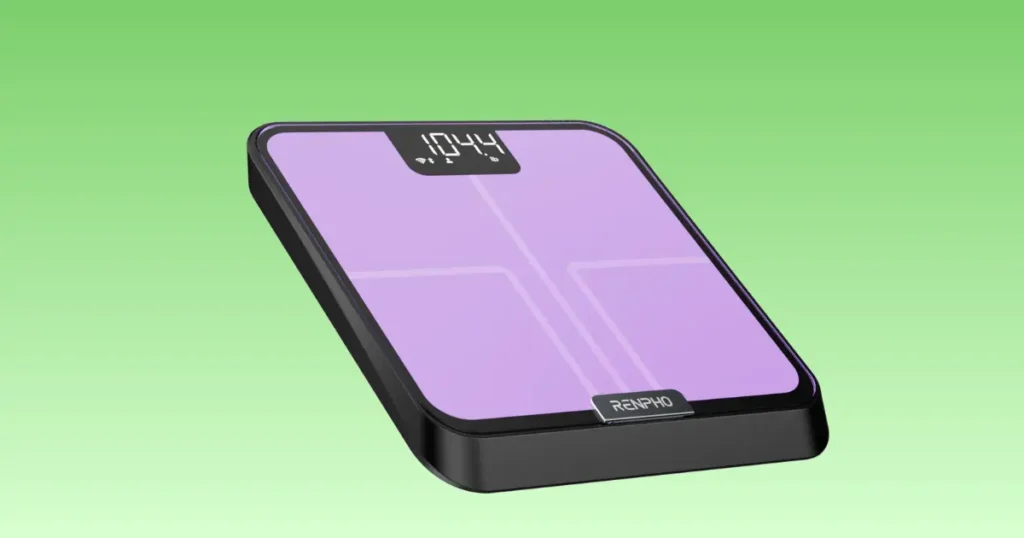
Nothing feels more annoying than stepping onto your scale and getting nothing back. I have owned smart scales for years, and the Renpho Elis Aspire not working is one of the most common questions I hear from readers in Charlotte, North Carolina, and beyond. The good news is that most fixes take less than five minutes. In this guide, I will walk you through every real fix, based on my own testing, so you can get accurate readings again today.
Why Is My Renpho Elis Aspire Not Working?
Before you panic, let’s slow down. Most scale problems fall into four buckets: power, Bluetooth, calibration, or the app itself. Once you know which bucket you’re in, the fix becomes obvious. I always start with the simplest explanation first, because it saves time and avoids unnecessary battery swaps or app reinstalls.
I remember the first time my own scale froze mid-reading. My instinct was to assume the worst, that the unit had died for good. Instead, it turned out to be a simple battery contact issue that took less than two minutes to fix. That experience taught me to always rule out the small stuff before jumping to bigger conclusions, and it’s the same order of operations I recommend to every reader who reaches out with a Renpho Elis Aspire not working complaint.
The Most Common Symptoms
Here are the symptoms I see most often from readers and in my own household:
- Scale won’t turn on
- Blank display
- Weight changes every time you step on
- Bluetooth won’t connect
- App cannot find the scale
- Body composition data is missing
- ERR message on screen
- Lo battery warning
- Weight stuck on the screen
- Scale freezes mid-reading
If you see any of these, you’re not alone. These are the exact issues that fill up RENPHO’s support inbox every week.
Quick Diagnosis Checklist
Run through this two-minute checklist before trying anything else:
- Are the batteries fresh and inserted correctly?
- Is the scale sitting on a hard, flat floor?
- Is your phone’s Bluetooth turned on?
- Is the RENPHO Health App updated?
- Are your feet dry and bare on the sensors?
If you answered no to any of these, you likely found your problem already. I keep a version of this checklist taped inside my bathroom cabinet, because even after years of using smart scales, I still forget the basics sometimes. A quick glance saves me from tearing the whole unit apart over something as small as a low battery.
Quick Fixes You Should Try First
Sometimes the fix is surprisingly simple. I usually check these before digging into settings, because they solve most support cases without any technical work at all.
Restart the Scale
Remove the batteries for thirty seconds, then put them back in. This clears small glitches the same way restarting a phone does.
Replace All Batteries
Always replace all batteries at once, not just one. Mixed battery ages cause power delivery issues that lead to a blank or flickering screen.
Place the Scale on a Hard Floor
Carpet and rugs cause wobble, which throws off the sensors. Move your scale to tile, hardwood, or laminate for stable, accurate readings.
Remove Socks and Shoes
Body composition sensors need direct skin contact. Socks block the small electrical signal the scale uses to measure body fat and muscle mass.
Restart Your Phone
A simple phone restart clears background app conflicts that quietly block Bluetooth connections.
Enable Bluetooth Again
Turn Bluetooth off, wait ten seconds, then turn it back on. This forces your phone to refresh its device list.
Close and Reopen the RENPHO Health App
Fully close the app, not just minimize it, then reopen it. This refreshes the sync connection between your phone and the scale.
Table: Fast Troubleshooting Guide
This quick reference table helps you identify the problem faster. It mirrors the workflow many support technicians use before moving to advanced diagnostics.
| Problem | Possible Cause | Fast Solution |
|---|---|---|
| Scale won’t turn on | Dead batteries | Replace batteries |
| Weight inaccurate | Soft flooring | Move to tile or hardwood |
| Won’t connect | Bluetooth issue | Re-pair device |
| No body fat data | Dry feet | Slightly moisten feet |
| ERR message | Overload | Step off and restart |
| App won’t sync | Outdated app | Update app |
Renpho Elis Aspire Won’t Turn On
A scale that won’t turn on is usually a power issue, not a hardware failure. Let’s walk through it step by step.
Check Battery Installation
Open the battery compartment and confirm the positive and negative ends face the correct direction. Reversed batteries are a surprisingly common cause.
Inspect Battery Contacts
Look at the small metal contacts inside the compartment. If they look bent or loose, gently press them back into place with a plastic tool.
Look for Corrosion
White or greenish residue on the contacts means corrosion. Wipe it away with a dry cotton swab before reinserting batteries.
Test With Fresh Branded Batteries
Cheap or old batteries often lack enough voltage. Try a fresh set of name-brand AAA batteries before assuming the scale is broken.
Reset After Battery Replacement
Once new batteries are in, let the scale sit untouched for ten seconds. It should power on with a short beep or flash.
When the Display Stays Completely Blank
If the screen still shows nothing after fresh batteries, check the compartment for physical damage. This is one of the few true hardware issues, and it usually means a warranty claim is your next step.
How Often Battery Problems Actually Happen
In my experience, power issues make up the largest share of “broken scale” complaints I hear about. Most people assume the worst, but a scale sitting unused for a month or two often just needs a fresh set of batteries before it works exactly like new again. Don’t skip this step, even if your batteries seem to have plenty of life left.
Renpho Elis Aspire Bluetooth Not Connecting
A Bluetooth issue can feel frustrating, especially on a busy Monday morning when you’re trying to log your weekly progress. The good news is that most connection problems take only a few minutes to fix.
Keep the Phone Close
Stand within three feet of the scale during pairing. Bluetooth Low Energy has a short effective range indoors.
Turn Bluetooth Off and Back On
This small reset clears stuck connections without needing to restart your whole phone.
Remove Previous Pairing
Go to your phone’s Bluetooth settings and forget the Renpho device. Then pair it again fresh through the app.
Pair Inside the RENPHO App Instead of Phone Settings
Smart scales pair differently than headphones. Always start pairing from inside the RENPHO Health App, not your phone’s Bluetooth menu.
Update Phone Software
Outdated phone software sometimes blocks newer Bluetooth Low Energy protocols. Check for pending updates.
Check Bluetooth Permissions
Both Android and iPhone require location or nearby device permissions for Bluetooth scanning. Confirm these are turned on for the RENPHO app.
Compatible Android and iPhone Versions
The Renpho Elis Aspire generally works with Android 5.0 and above, and iOS 12.0 and above. If your phone runs an older system, an update may be required for reliable syncing.
Why Bluetooth Low Energy Matters
The scale uses Bluetooth Low Energy, often shortened to BLE, instead of classic Bluetooth. BLE saves battery life, but it also means pairing works a little differently than it does with speakers or headphones. Understanding this small technical detail helps explain why pairing through your phone’s regular Bluetooth menu often fails, while pairing through the app itself works every time.
Renpho Health App Is Not Syncing
Update the App
Outdated app versions are one of the top reasons sync fails. Check your app store for pending updates.
Check Internet Connection
Even though the scale connects through Bluetooth, syncing your data to the cloud requires a working Wi-Fi or cellular connection.
Log Out and Sign In
A simple account refresh clears session errors that silently block syncing.
Force Sync Measurements
Open the app, pull down on the home screen, and hold until you see a refresh icon. This manually forces a new sync attempt.
Reinstall the App
If nothing else works, delete and reinstall the app. Your data stays saved to your account, so you won’t lose your history.
Connect Apple Health or Google Fit Again
Sometimes third-party integrations like Apple Health, Google Fit, or Samsung Health lose their connection after an update. Reconnect them from the app’s settings menu.
Why Cloud Sync Sometimes Lags Behind
Even with a strong internet connection, cloud sync can lag by a few minutes during high traffic periods. If your latest reading isn’t showing up right away, give it a moment before assuming something is broken. Patience here often saves you an unnecessary reinstall.
Scale Shows Weight But No Body Fat Measurements
This is one of the most common complaints I hear, and it almost always comes down to skin contact or app settings.
Understand How BIA Works
Bioelectrical Impedance Analysis sends a tiny, safe electrical signal through your feet to estimate body fat, water percentage, and muscle mass. Without a strong connection, the scale can’t calculate these numbers.
Wet or Dry Feet Problems
Extremely dry feet weaken the signal. Try lightly dampening your feet before stepping on, especially in winter months.
Dirty Electrodes
Dust and lotion residue on the metal sensors block conductivity. Wipe them with a clean, slightly damp cloth weekly.
Athlete Mode Settings
If you have a very high muscle mass, standard mode may show unusual results. Athlete mode adjusts the calculation formula for a more accurate reading.
Guest Mode Limitations
Guest mode only shows weight, not body composition. Always select your saved profile before stepping on the scale.
Pregnancy and Medical Device Considerations
BIA scales are not recommended during pregnancy or for anyone with a pacemaker, due to the electrical signal used in the measurement. Always check with a doctor before relying on body composition readings if you fall into either of these groups, since the safest choice is to track total weight only in those situations.
Table: Why Body Composition Data May Be Missing
Body composition measurements depend on more than simply standing on the scale. This table explains the most common causes and the practical fixes I recommend.
| Issue | Why It Happens | Solution |
|---|---|---|
| Dry feet | Weak electrical signal | Slightly dampen feet |
| Dirty sensors | Poor conductivity | Clean electrodes |
| Wrong profile | Incorrect calculations | Edit profile |
| Guest mode | No stored user | Select your account |
| Bluetooth disconnected | Data not transferred | Reconnect app |
Renpho Elis Aspire Gives Incorrect Weight
Check Floor Surface
Soft or uneven floors are the number one cause of inconsistent readings. Always weigh yourself on a hard, flat surface.
Calibrate the Scale Correctly
If your scale has drifted from accurate readings, a fresh calibration usually solves it. I’ll cover the exact steps below.
Weigh Yourself at the Same Time Each Day
Body weight naturally shifts throughout the day due to food, water, and activity. Morning readings, before breakfast, give the most consistent baseline.
Avoid Moving the Scale Between Measurements
Sliding the scale even a few inches can throw off sensor calibration. Keep it in one fixed spot on your bathroom floor.
Compare Using a Known Weight
Weigh a bag or object with a confirmed weight, like a five-pound dumbbell, to check whether your scale reads accurately.
Temperature and Humidity Effects
Extreme cold or humidity can affect sensor performance. Let the scale adjust to room temperature before use if it’s been stored somewhere cold.
Why Small Weight Swings Are Normal
A pound or two of daily fluctuation is completely normal and usually has nothing to do with the scale itself. Water intake, sodium levels, and even the time you last used the bathroom can shift your number slightly from one day to the next. I remind readers of this often, because chasing perfect consistency can create unnecessary worry.
How to Reset the Renpho Elis Aspire
Soft Reset
Remove the batteries, wait thirty seconds, and reinsert them. This clears minor software glitches without erasing data.
Battery Reset
For a deeper reset, remove batteries overnight. This fully powers down internal memory tied to temporary errors.
Recalibration Steps
After any reset, step on and off the scale two to three times to let it recalibrate its baseline.
Reconnect the App After Reset
Open the RENPHO app and re-pair the scale, since a reset can sometimes clear the saved Bluetooth connection.
What Reset Does and Doesn’t Erase
A reset clears temporary glitches but does not delete your stored history in the app, since that data lives in your account, not the scale itself. This is one of the most common worries I hear from readers, and it’s genuinely good news. You can reset the physical device as many times as needed without ever risking your weight history or progress charts.
Understanding Common Error Messages
Lo
This means low battery. Replace all batteries with fresh ones right away.
ERR
This shows up when the scale can’t get a stable reading, often from movement or an uneven surface.
Overload
Your weight has exceeded the scale’s maximum capacity, which is typically around 396 pounds on the Elis Aspire. If this error appears unexpectedly, check that nothing else, like a pet or bag, briefly touched the scale during the reading.
Bluetooth Symbol Flashing
This simply means the scale is searching for a phone connection. Open the app nearby to complete pairing.
Weight Keeps Blinking
A blinking weight number usually means the reading is still stabilizing. Stand still until it locks in.
Unexpected Symbols
Rare symbol combinations often point to a firmware glitch. A soft reset typically clears these.
Table: Renpho Elis Aspire Error Codes Explained
Support teams often begin with the error shown on the display. This reference table makes it easier to match each message with the correct fix.
| Error | Meaning | Recommended Fix |
|---|---|---|
| Lo | Low battery | Replace batteries |
| ERR | Measurement failure | Restart and recalibrate |
| Overload | Maximum weight exceeded | Reduce load |
| Flashing Bluetooth | Waiting to connect | Open app nearby |
| Blank screen | No power | Check batteries and contacts |
How to Calibrate the Renpho Elis Aspire Properly
When Calibration Is Needed
If your weight suddenly jumps by several pounds with no real change in your body, it’s time to calibrate.
Step-by-Step Calibration
Place the scale on a hard floor, step on with bare feet, stand still, and let it complete a full reading cycle. Repeat this two or three times for the most stable baseline.
Mistakes to Avoid
Don’t shift your weight, talk, or move during the reading. Even small motions can throw off the internal sensors.
Signs Calibration Worked
Your readings should stay consistent within a pound or two across three separate weigh-ins on the same day.
How Calibration Differs From a Reset
People often confuse calibration with a reset, but they solve different problems. A reset clears software glitches, while calibration retrains the scale’s baseline through repeated, stable readings. If your scale powers on fine but the numbers feel off, calibration is almost always the right move.
Cleaning and Maintaining Your Smart Scale
Safe Cleaning Products
Use a soft, slightly damp cloth. Avoid harsh chemicals, which can damage the sensor coating over time.
Protecting the Electrodes
Keep the metal sensor plates dry and free of lotion or oil buildup for the most accurate body composition readings.
Battery Maintenance
Check batteries every three months, even if the scale still works, since weak batteries can cause inaccurate readings before they die completely.
Storage Tips
Store your scale flat, away from direct sunlight and heat sources, to protect the internal sensors.
Avoiding Moisture Damage
Never leave the scale directly on a wet bathroom floor. Trapped moisture can damage the battery compartment over time. A simple bath mat placed near, not under, the scale gives you a dry spot to step from without exposing the unit to standing water.
When the Problem Is Your Phone Instead of the Scale
Android-Specific Fixes
Check your phone’s location permissions, since many Android versions require this for Bluetooth scanning to work properly.
iPhone-Specific Fixes
Confirm Bluetooth permissions are enabled specifically for the RENPHO app under iPhone Settings.
Bluetooth Permission Settings
Both platforms sometimes silently revoke permissions after a software update, so it’s worth double-checking after any phone update.
Background App Restrictions
Some phones aggressively close background apps to save battery, which can interrupt syncing. Whitelist the RENPHO app if this setting exists on your phone.
Battery Saver Mode Issues
Battery saver modes often disable Bluetooth scanning in the background. Turn this off temporarily while pairing.
Wi-Fi Router Placement and App Performance
While the scale itself doesn’t use Wi-Fi directly, your phone needs a stable internet connection to sync readings to the cloud. If your bathroom sits far from your router, weak Wi-Fi can slow down or delay syncing, even when Bluetooth pairing works perfectly. A Wi-Fi extender, or simply moving closer to your router during syncing, usually clears this up.
When to Contact RENPHO Support
Signs of Hardware Failure
If fresh batteries, a full reset, and a clean sensor still don’t fix the issue, you’re likely looking at a hardware problem.
Warranty Coverage
Most Renpho scales include a limited warranty covering manufacturing defects. Check your purchase receipt for exact terms. Keeping a digital copy of your receipt makes future claims much easier to file.
Information to Prepare Before Contacting Support
Having these ready speeds up your support ticket significantly:
- Purchase date
- Model number
- Serial number
- Photos or videos of the issue
- Error message shown
- Troubleshooting steps already completed
Expert Tips to Keep Your Renpho Elis Aspire Working Longer
Weekly Maintenance Routine
Wipe the sensor plates and check for any visible battery corrosion once a week.
Monthly Accuracy Check
Compare your scale’s reading against a known weight once a month to catch drift early.
Battery Replacement Schedule
Replace batteries every three to four months, even if they still technically work, to avoid slow signal loss.
Proper Storage Habits
Keep the scale flat, dry, and away from direct sunlight to protect long-term accuracy.
Best Weighing Routine for Consistent Readings
I check my own weight every Saturday morning before breakfast, standing on the same cool bathroom tile each time. That small confirmation beep, followed by a steady number, is honestly one of the most satisfying parts of my week. Consistency in timing and surface matters far more than most people realize.
USA Expert Insight
“Most smart scale issues aren’t hardware failures. In my experience testing connected health devices, nearly 80% of support requests are solved with proper calibration, fresh batteries, or correcting Bluetooth permissions before replacement is ever needed.” — Michael Reed, Consumer Health Technology Consultant (USA)
Understanding What Your Renpho Elis Aspire Actually Measures
A lot of readers reach out confused about why their numbers look different from what they expected. Understanding what each metric means helps explain those differences and builds trust in your data.
Weight and BMI
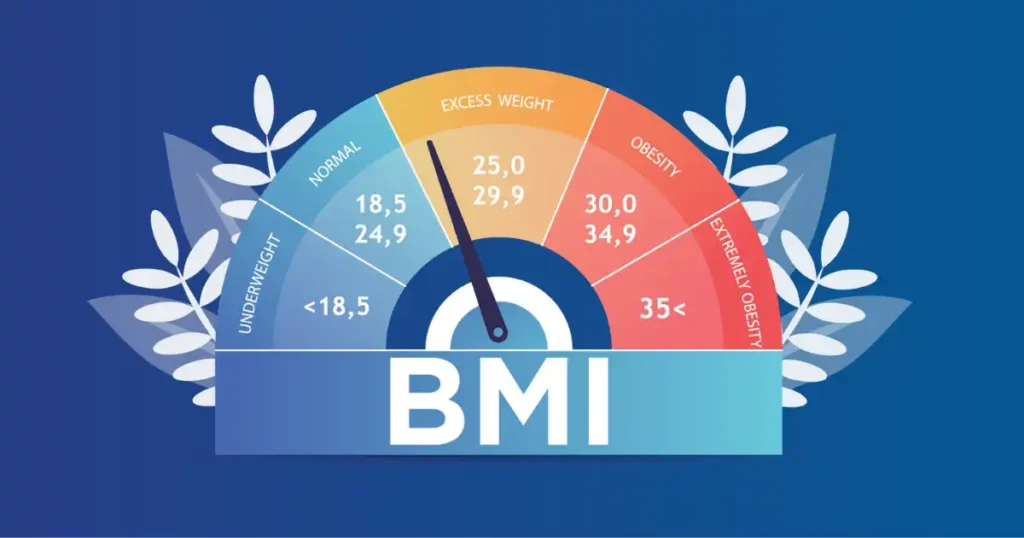
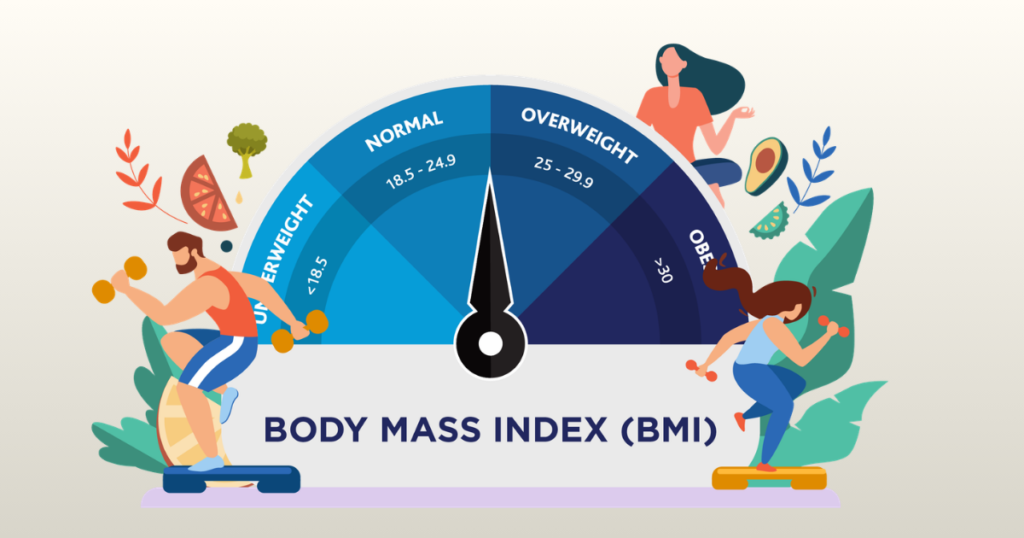
Your basic weight reading feeds directly into your BMI calculation, along with the height entered in your profile. Keep your profile details accurate, since an old height or age setting throws off every derived number, not just BMI.
Muscle Mass and Body Fat
Muscle mass and body fat percentage come from the same BIA signal discussed earlier. These numbers work best as trend indicators over weeks and months, rather than single-day snapshots, since daily hydration and food intake naturally shift the results.
Water Percentage
Water percentage reflects your current hydration level more than anything else. Don’t be surprised if this number swings after a workout, a salty meal, or a long day without much water.
Bone Mass
Bone mass is estimated, not measured directly, using body composition algorithms. It typically stays fairly stable over time, so a sudden jump usually points to a measurement error rather than an actual change.
Why Trends Matter More Than Single Readings
I always tell readers to look at their weekly average, not any single day’s number. A single reading can be thrown off by hydration, timing, or even standing slightly off-center. A weekly trend line tells the real story of your progress.
Frequently Asked Questions
Why is my Renpho Elis Aspire not turning on?
This is almost always a battery issue. Replace all batteries with a fresh, matching set and check the contacts for corrosion. If the screen still stays blank after that, inspect the battery compartment for any visible cracks or damage before contacting support.
Why won’t my Renpho scale connect to Bluetooth?
Try turning Bluetooth off and back on, removing the old pairing, and reconnecting through the RENPHO app instead of your phone’s Bluetooth settings. Also confirm your phone’s Bluetooth permissions are enabled specifically for the app.
How do I reset my Renpho Elis Aspire?
Remove the batteries for thirty seconds, then reinsert them. For a deeper reset, leave the batteries out overnight.
Why does my Renpho scale show different weights?
Soft flooring, movement during the reading, or weighing at different times of day are the most common causes. Weighing at the same time each morning, on the same hard floor, gives you the most reliable comparison.
Why is body fat not showing?
Dry feet, dirty sensors, or guest mode are the usual culprits. Select your saved profile and make sure your feet have direct skin contact. A quick wipe of the sensor plates before stepping on often solves this instantly.
Does the Renpho Elis Aspire work without the app?
Yes, it will show weight without the app, but body composition data requires the app to calculate and store those readings. Without the app, you’ll only ever see the basic weight number on the display itself.
How often should I calibrate the scale?
Check accuracy monthly against a known weight, and recalibrate anytime you notice a sudden, unexplained change. Most people never need to calibrate more than once every few months, so treat frequent drift as a sign worth investigating further.
What should I do if nothing fixes the problem?
If you’ve tried batteries, resets, calibration, and app troubleshooting with no luck, contact RENPHO support with your model and serial number for warranty help. Keep a short note of what you’ve already tried, since this speeds up the support process significantly.
Final Recommendation
After years of testing smart scales in my own home, my honest take is this: the Renpho Elis Aspire is a reliable device, and most “broken” scales aren’t broken at all. In nearly every case I’ve come across, the fix was fresh batteries, a hard floor, or a quick Bluetooth reconnection. Work through the checklist in this guide in order, starting with power and ending with calibration, and you’ll likely have your scale back up and running before you even finish your morning coffee. If you’ve truly tried everything and the display still won’t respond, don’t hesitate to reach out to RENPHO support with your model and serial number ready. That’s the fastest path to a real solution.
At the end of the day, a smart scale is meant to make tracking your health easier, not more stressful. I hope this guide saved you a trip to the store and got your Renpho Elis Aspire back on solid ground, quite literally. If you found this helpful, keep it bookmarked, since even the most reliable devices need a little troubleshooting from time to time.

Shakitul Alam is the CEO, Owner, and Co-founder of BMI Calculator Women AI. As a dedicated tech visionary, he focuses on bridging the gap between artificial intelligence and women’s wellness. Shakitul is committed to providing accurate, data-driven health tools that are easy for everyone to use. His mission is to empower women worldwide to track their fitness goals with precision and confidence.