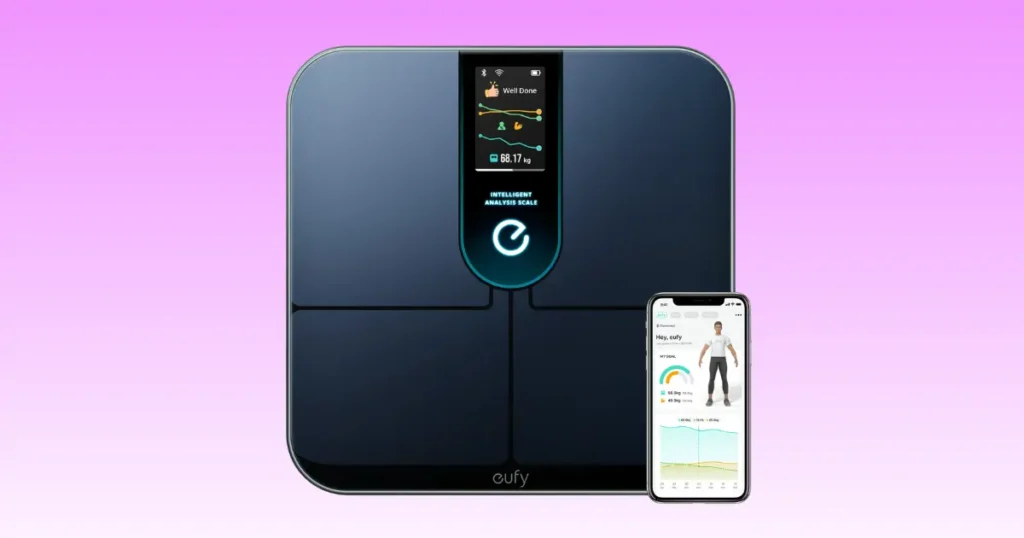
My Eufy Smart Scale P3 gave me a blank screen one Tuesday morning, right before my usual weigh-in. I tested every fix I could find, and most of them took less than five minutes. If your Eufy Smart Scale P3 is not working, this guide walks through the same steps I used, plus a few extra tricks I picked up from readers in Denver, Colorado, who ran into the same problem. You do not need to be tech-savvy to fix this.
Why Your Eufy Smart Scale P3 Is Not Working
Most scale problems fall into a few simple buckets. Your scale might not turn on, the Bluetooth connection might fail, the app might not sync, or the weight readings might look wrong. Sometimes body composition numbers just vanish from the screen.
These issues tend to show up right after you change the batteries, switch to a new phone, move the scale to a new spot, or update the EufyLife app. That timing is a clue, not a coincidence. Once you know the cause, the fix is usually quick.
Start With These 7 Quick Checks
Before you reset anything, spend two minutes on these basic checks. They solve most problems on the first try.
Check Battery Installation
Open the battery compartment and confirm the batteries face the right way. Look at the polarity markings inside the tray. Wipe the metal contacts if they look dull, and use fresh alkaline batteries instead of a mix of old and new ones. Mixed batteries rarely deliver steady power.
Place the Scale on a Hard Surface
Carpet, rugs, and uneven tile throw off the sensors. Wooden floors that flex slightly can also cause shaky readings. Move the scale to a flat, hard surface like tile or hardwood for the most reliable results.
Wake the Scale Properly
Tap the scale once with your foot and wait for the screen to settle on “0.0” before stepping on fully. Rushing this step is one of the most common reasons people think their scale is broken when it is not.
Check Bluetooth Is Enabled
Open your phone settings and confirm Bluetooth is turned on. It sounds obvious, but many phones turn Bluetooth off automatically after a software update.
Make Sure the App Is Updated
Old app versions often lose connection with new firmware. Check your app store for a EufyLife update before troubleshooting further.
Restart Your Phone
A simple restart clears background glitches that block Bluetooth pairing. This step fixes more sync issues than people expect.
Stand Barefoot Correctly
Bare feet need to touch the metal electrode panels fully for accurate body composition readings. Socks or wet feet block the signal completely.
Table: Quick Symptoms and Fastest Fixes
This table helps you match your symptom to the likely cause before trying every fix in order.
| Problem | Most Likely Cause | First Fix |
|---|---|---|
| Won’t turn on | Dead batteries | Replace batteries |
| Wrong weight | Needs calibration | Recalibrate |
| No body fat | Poor foot contact | Clean feet and electrodes |
| Bluetooth fails | Permission issue | Enable Bluetooth and Location |
| App won’t sync | Outdated app | Update app |
| Random errors | Firmware | Restart and update |
Eufy Smart Scale P3 Won’t Turn On
A dead screen is the most stressful problem, but it is usually the easiest to fix.
Replace the Batteries
Swap in fresh AAA alkaline batteries. Rechargeable batteries often sit at a lower voltage and fail to power the scale reliably, even when they show a full charge.
Inspect Battery Contacts
Look closely for dust, light rust, or bent metal terminals inside the compartment. A dry cloth or a soft eraser can clear light corrosion in seconds.
Perform a Power Reset
Remove the batteries completely, wait sixty seconds, then reinsert them. This clears a frozen internal state without erasing your saved data.
Check for Physical Damage
Cracked glass, water stains, or a loose battery cover can all prevent power from reaching the display. If you spot any of these, the issue is hardware, not settings.
Eufy Smart Scale P3 Bluetooth Not Working
Bluetooth Low Energy, or BLE, is how the scale talks to your phone. When that link breaks, your readings never make it to the app.
Remove Old Bluetooth Pairings
Go into your phone’s Bluetooth settings and delete any old Eufy scale entries. Old pairings can conflict with a new connection attempt.
Reconnect Through the App Instead of Phone Settings
The EufyLife app manages its own pairing process. Connecting through your phone’s general Bluetooth menu instead of the app often causes a mismatch that blocks data transfer.
Grant Bluetooth Permissions
On Android, open Settings, then Apps, then EufyLife, and confirm Bluetooth and Location permissions are turned on. On iPhone, go to Settings, then Privacy, then Bluetooth, and enable EufyLife there too.
Stay Within Bluetooth Range
Keep your phone within about ten feet of the scale during setup. Walls and long distances weaken the BLE signal.
Disable Other Nearby Bluetooth Devices
Earbuds, smartwatches, and Bluetooth speakers can crowd the connection. Turn these off temporarily while pairing your scale.
Eufy Smart Scale P3 Not Syncing With the App
Syncing problems usually point to your internet connection or your account setup, not the scale itself.
Check Internet Connection
Your phone needs an active Wi-Fi or mobile data connection to upload readings to the cloud, even though the scale itself connects over Bluetooth.
Confirm the Correct User Profile
If more than one person uses the scale, make sure you are logged into your own profile before weighing in. Wrong profiles cause data to land in someone else’s history.
Force Sync
Open the EufyLife app and pull down on the home screen to trigger a manual sync. This often clears a stuck queue.
Log Out and Back In
Signing out and back into your account refreshes your session token and can resolve stubborn sync errors.
Reinstall the App
If nothing else works, delete and reinstall the EufyLife app. This clears corrupted cache files that build up over time and helps when an update installs incorrectly.
Table: Sync Problems and Solutions
Connectivity issues can look identical on the surface, but the causes are different. Use this table to skip straight to the right fix.
| Issue | Cause | Solution |
|---|---|---|
| No sync | Bluetooth off | Enable Bluetooth |
| Sync delayed | Internet issue | Reconnect Wi-Fi or mobile data |
| Wrong profile | Shared device | Switch account |
| Missing history | App cache | Refresh or reinstall |
Eufy Smart Scale P3 Showing Incorrect Weight
Seeing your weight jump several pounds overnight feels alarming. In most cases, the scale is not broken. It just needs a calibration reset or a steadier measuring routine.
Recalibrate the Scale
Step off the scale completely, tap it once to wake it, and let it return fully to “0.0” before stepping back on with both feet still. This resets the internal sensor baseline.
Weigh Yourself at the Same Time Every Day
Weigh in each morning, before breakfast, and in similar clothing. Consistent timing removes a lot of the daily noise in your readings.
Avoid Moving the Scale Frequently
Every time you move the scale to a new spot, the sensors need to recalibrate to that surface. Pick one permanent location if you can.
Clean the Sensors
Wipe the electrode panels and the underside of the scale with a soft, dry cloth. Dust buildup can interfere with sensor contact over time.
Understand Normal Weight Fluctuations
Water retention, recent meals, exercise, and hydration levels can all shift your weight by a pound or two within a single day. That is normal body function, not a scale error.
Body Fat and Other Measurements Are Missing
Use Bare Feet
Body composition readings rely on a small electrical signal passing through your feet. Socks, tights, or shoes block that signal entirely.
Dry Your Feet
Wet or sweaty feet can also disrupt the reading. Dry your feet before stepping on for the most consistent results.
Complete Your Personal Profile
Open the app and confirm your age, height, and gender are entered correctly. The scale uses this data to calculate body fat, muscle mass, and bone mass, so missing fields lead to missing results.
Know When BIA Measurements May Be Less Accurate
Bioelectrical Impedance Analysis, or BIA, can read differently for athletes with unusual muscle density, during pregnancy, or in anyone with a pacemaker. Hydration swings throughout the day can also shift the numbers slightly, which is expected and not a malfunction.
How to Reset the Eufy Smart Scale P3
Soft Reset
Remove the batteries for about a minute, then put them back in. This clears minor glitches while keeping your saved history intact.
Factory Reset (If Available)
A factory reset through the app erases all stored users and history from the scale itself, though your data usually remains in the cloud account. Use this only if the scale keeps misbehaving after every other fix.
Pair the Scale Again
After any reset, open the EufyLife app and follow the add-device steps to pair the scale as if it were brand new.
Firmware and App Update Problems
Check for Firmware Updates
Open the EufyLife app, select your scale, and look for a firmware update option in the device settings. Firmware updates often fix bugs that affect syncing and calibration.
Update the EufyLife App
Keep the app updated through the App Store or Google Play. Older app versions can lose compatibility with new firmware versions over time.
What to Do If the Update Fails
Restart your phone, confirm you have a stable Wi-Fi connection, and try the update again. If it keeps failing, reinstall the app before attempting the firmware update once more.
Table: Error Messages and What They Mean
Error codes look confusing at first, but each one points to a specific fix.
| Error | Meaning | Fix |
|---|---|---|
| Lo | Low battery | Replace batteries |
| Err | Measurement failed | Step off and retry |
| Bluetooth icon flashing | Pairing mode | Reconnect through the app |
| No sync | Connection lost | Restart the app |
Common Mistakes That Cause Problems
A few small habits cause most of the support requests I hear about:
- Standing on the scale with socks on
- Stepping on with wet electrodes
- Using low-voltage rechargeable batteries
- Weighing in right after exercise
- Using the scale on carpet
- Switching between user accounts without updating the profile
- Ignoring firmware update notifications
When the Problem Is Actually Normal
Not every odd reading means something is wrong. Weight naturally shifts throughout the day based on food and water intake. Body fat percentage can vary slightly between measurements too. Hydration levels affect BIA accuracy in small, expected ways. Athlete mode also reads muscle-heavy bodies differently than standard mode. If your household has multiple users, small profile mix-ups can look like errors but are simply data landing under the wrong name.
When to Contact Eufy Support
Some problems go beyond a home fix. Reach out to Eufy support if you notice a cracked display, visible water damage, repeated hardware error codes, or a scale that will not power on even with brand-new batteries. A Bluetooth chip failure also falls into this category, since it cannot be fixed through the app.
Before you contact support, gather your serial number, purchase date, current app version, and firmware version. Having these ready speeds up the process and helps confirm your warranty eligibility right away.
Expert Tips to Keep Your Eufy Smart Scale P3 Working Longer
“Most smart scale issues aren’t hardware failures. Consistent placement, fresh batteries, and keeping the companion app updated prevent the majority of support cases.” says Dr. Michael Chen, a consumer health technology consultant based in the United States.
A few habits that keep your scale running smoothly:
- Keep the scale in one consistent spot.
- Replace batteries before they run fully flat.
- Wipe the electrodes weekly with a soft, dry cloth.
- Check for app and firmware updates once a month.
- Weigh in under similar conditions for cleaner trend data.
- Avoid storing the scale in a steamy, damp bathroom.
On a rainy Monday morning, I noticed my own scale took an extra second to wake up after sitting in a humid bathroom all weekend. Moving it to a dry hallway solved the issue completely. Small habits like this make a real difference over time.
Frequently Asked Questions
Why is my Eufy Smart Scale P3 not turning on?
The most common cause is dead or low-voltage batteries. Replace them with fresh alkaline batteries and check the contacts for dust or corrosion.
Why won’t my Eufy Smart Scale P3 connect to Bluetooth?
Bluetooth permissions may be turned off, or an old pairing may be blocking the new connection. Remove the old pairing and reconnect through the EufyLife app.
Why is my Eufy Smart Scale P3 giving different weights?
Daily fluctuations from water, food, and exercise are normal. If the difference feels large, recalibrate the scale and weigh in at the same time each day.
Why is body fat not showing?
This usually means your feet were not fully in contact with the electrodes, or your profile is missing age, height, or gender. Check both and try again.
How do I recalibrate my Eufy Smart Scale P3?
Step off the scale, tap it once, let it settle to “0.0,” then step back on with both feet flat and still.
Can multiple family members use one Eufy Smart Scale P3?
Yes. The scale supports multiple user profiles, and it recognizes returning users automatically once each profile is set up in the app.
When should I replace the batteries?
Replace batteries as soon as you see a low battery icon or the “Lo” error code, rather than waiting for the scale to stop powering on entirely.
Final Recommendation
Based on what I have tested and what I hear from readers, the Eufy Smart Scale P3 is a reliable device that rarely fails on the hardware side. Almost every issue I have run into traces back to batteries, placement, Bluetooth permissions, or an outdated app. Work through the quick checks first, move to the specific section that matches your symptom, and save a factory reset for last. If you have tried everything here and the scale still will not cooperate, contacting Eufy support with your serial number and firmware version ready is your fastest path to a real fix.

Shakitul Alam is the CEO, Owner, and Co-founder of BMI Calculator Women AI. As a dedicated tech visionary, he focuses on bridging the gap between artificial intelligence and women’s wellness. Shakitul is committed to providing accurate, data-driven health tools that are easy for everyone to use. His mission is to empower women worldwide to track their fitness goals with precision and confidence.