
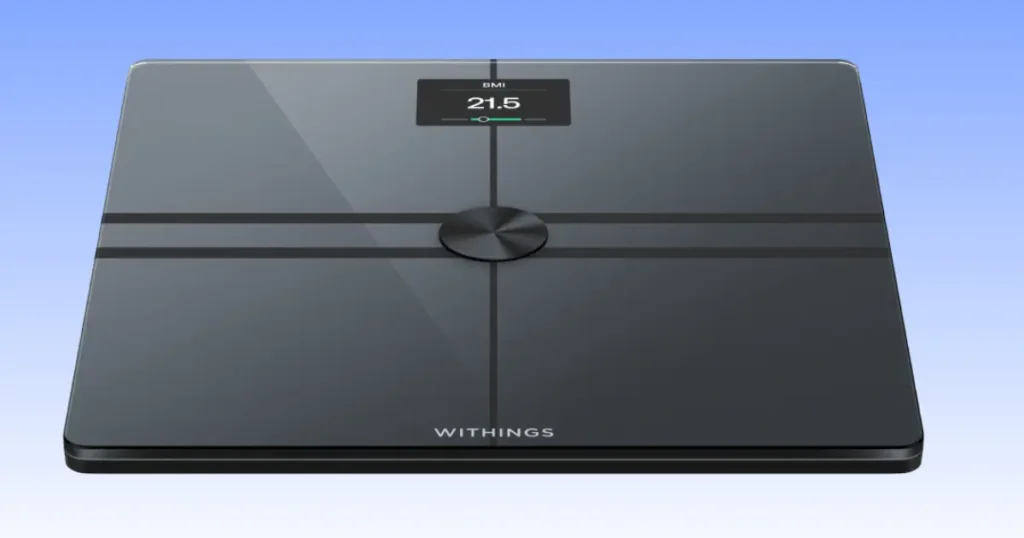
Staring at a Withings Body Comp that won’t sync, won’t light up, or gives you a number you don’t trust is genuinely frustrating, especially when you were counting on that quick morning check-in. I’ve spent hours testing and troubleshooting this exact scale, and I’m walking you through every fix I know, from power problems to Wi-Fi drops to body composition errors. We’ll start with the fast, easy fixes and work toward the deeper stuff. By the end, you’ll know exactly what to check the next time something goes wrong.
Why Your Withings Body Comp May Not Be Working
Most problems trace back to connectivity, calibration, batteries, software, or setup, not a broken scale. A few quick checks solve the issue in minutes more often than you’d expect.
Common Symptoms
- Scale won’t turn on
- Blank or frozen display
- Wi-Fi won’t connect
- Bluetooth pairing fails
- Health Mate app not syncing
- Weight readings are inconsistent
- Body composition measurements missing
- ECG or vascular age unavailable
- Scale keeps restarting
- Error messages appear
Quick Troubleshooting Checklist
- Restart the scale
- Check battery level
- Verify Wi-Fi signal
- Enable Bluetooth
- Update the Withings app
- Place the scale on a hard floor
- Clean the electrodes
- Restart your smartphone
Withings Body Comp Not Turning On
Before you assume the scale has failed, start with power. Many “dead” smart scales just need fresh batteries or a quick reset.
Check the Battery Level
Open the Withings app and check the battery indicator on your device page. A low battery often causes a scale to seem dead even though it technically still works.
Replace the Batteries Correctly
Use fresh AAA alkaline batteries, and make sure the plus and minus ends line up with the markings inside the tray. Mixing old batteries with new ones causes uneven power and unpredictable behavior.
Inspect the Battery Contacts
Look closely at the metal contacts inside the compartment. Dirt, dust, or a thin layer of corrosion can block the connection even when your batteries are brand new.
Clean Battery Terminals Safely
A dry cotton swab handles most dust and debris. For corrosion, use a swab lightly dampened with rubbing alcohol, then let everything dry completely before reinserting batteries.
Perform a Power Reset
Remove the batteries for a full 60 seconds. This clears any leftover charge sitting in the scale’s circuit board. Reinsert the batteries and try powering it on again.
Signs of Hardware Failure
If fresh batteries and a reset don’t help, and you notice cracks, water exposure, or a burning smell, you’re likely dealing with a hardware issue. At that point, it’s time to contact Withings support rather than keep guessing.
Withings Body Comp Display Not Working
Blank Display
A completely blank screen usually points back to batteries or a loose connection. Work through the power steps above first.
Frozen Screen
If a number appears and just sits there, do a power reset by pulling the batteries for a minute. This almost always clears a frozen display.
Dim Display
A dim screen is one of the earliest warning signs of low batteries, often showing up before the scale has any other problems. Swap in fresh batteries right away.
Flashing Screen
A flashing display usually means the scale is trying to sync or update. Give it a minute near your phone and router before assuming something’s wrong.
Missing Icons or Partial Numbers
Missing segments on the display point to an LCD hardware issue rather than something you can reset your way out of. This is worth a support ticket if your unit is still under warranty.
Withings Body Comp Won’t Connect to Wi-Fi
Wi-Fi is one of the biggest differences between the Body Comp and a basic smart scale, and it’s also one of the biggest sources of headaches. If your network changes or your signal is weak, syncing can stop cold.
Check Your Wi-Fi Network
Confirm your home network is actually online. It sounds obvious, but a router outage is one of the most common causes of a scale that suddenly stops syncing.
Confirm 2.4 GHz Compatibility
The Body Comp connects to 2.4 GHz networks, not 5 GHz. If your router broadcasts a combined network name, you may need to split it into separate bands in your router settings.
Restart Your Router
Unplug your router for about 30 seconds, then plug it back in. This clears temporary glitches that can block new device connections.
Move Closer During Setup
Keep the scale close to your router while setting up Wi-Fi for the first time. Once it’s connected, you can move it back to your bathroom.
Reconnect the Scale to Wi-Fi
Open the Withings app, go to your device settings, and walk through the Wi-Fi setup again. This refreshes the saved network credentials.
Avoid Guest Networks
Guest networks often block devices from talking to each other, which can prevent proper syncing. Use your main home network instead.
Check Firewall or Router Restrictions
Some routers have parental controls or device restrictions that quietly block smart home devices. Check your router’s connected devices list to confirm the scale isn’t being blocked.
Withings Body Comp Bluetooth Not Working
Enable Bluetooth Permissions
Check your phone’s settings and confirm the Withings app has full Bluetooth access. This permission can reset itself after a phone update without any notice.
Turn Location Permission On (Android)
Android requires Location permission for Bluetooth scanning to work correctly. This is a system requirement, not a Withings setting.
Forget and Reconnect the Scale
Go into your phone’s Bluetooth settings, forget the Withings device, then pair it again fresh through the app.
Restart Bluetooth
Turn Bluetooth off, wait ten seconds, then turn it back on. This small step clears a surprising number of connection glitches.
Remove Old Paired Devices
If you’ve connected the scale to more than one phone, old pairing data can cause conflicts. Clear out devices you no longer use.
Restart Your Phone
A full phone restart resets all active wireless connections and often fixes stubborn Bluetooth issues that smaller fixes miss.
Withings Body Comp Not Syncing With the Withings App
Confirm You’re Using the Correct Account
If you’ve ever changed your email or logged into a different profile, double check you’re signed into the same account linked to your scale.
Check Internet Connectivity
Your scale needs Wi-Fi to send data, and your phone needs internet access to sync that data to the cloud and to any connected health apps.
Update the Withings App
An outdated app is one of the most common syncing culprits. Check your app store for a pending update.
Force a Manual Sync
Open the app, go to your device page, and look for a manual sync or refresh button rather than waiting for automatic syncing.
Log Out and Back In
Signing out and back in refreshes your session and clears small sync bugs hiding in the background.
Reinstall the App
If nothing else works, delete the app completely and reinstall it. This clears any corrupted cache files that might be blocking sync.
Check Cloud Synchronization
Sometimes data reaches your phone but doesn’t push to the Withings cloud. Confirm your app shows a recent “last synced” timestamp on your device page.
Verify Apple Health or Google Health Connect Permissions
If you’re using Apple Health or Google Health Connect, double check the Withings app has permission to write data there. This permission is separate from your phone’s Bluetooth settings.
Weight Readings Are Incorrect
Small changes in where and how you stand can noticeably affect your results. Accurate readings come from consistency more than anything else.
Place the Scale on Hard Flooring
Tile, hardwood, and vinyl give the scale a stable, even surface to work with.
Avoid Carpet
Carpet is soft and uneven, and it’s one of the top reasons for jumpy, inconsistent readings. Move the scale to a hard floor if your bathroom is carpeted.
Stand Still During Measurement
Movement confuses the internal sensors. Stand still with your weight spread evenly across both feet until the reading locks in.
Weigh Yourself at the Same Time Every Day
Try to weigh in first thing in the morning, before breakfast, in similar clothing, for the most reliable trend over time.
Recalibrate the Scale
Remove the batteries for a minute, reinsert them, and step onto the scale as soon as the display lights up. This resets its zero point.
Compare Readings With Another Trusted Scale
If you’re still unsure, compare your Body Comp to a scale at your gym or doctor’s office. A difference of a pound or so between two different scales is completely normal.
Table: Common Weight Accuracy Problems
When people report inaccurate readings, these are the causes I check first. Most of them take just a few minutes to fix.
| Problem | Likely Cause | Recommended Fix |
|---|---|---|
| Weight changes every reading | Uneven floor | Move to tile or hardwood |
| Reading too high | Calibration issue | Recalibrate scale |
| Reading too low | Weak batteries | Replace batteries |
| Scale rocks slightly | Uneven surface | Reposition scale |
| Reading unstable | User movement | Stand still |
Body Composition Measurements Are Missing or Wrong
How Bioelectrical Impedance Analysis (BIA) Works
Your Body Comp sends a tiny, safe electrical current through your feet to estimate fat, muscle, and water. The scale measures how quickly that signal travels, since fat and muscle conduct electricity at different speeds.
Why Hydration Affects Body Fat Readings
Your hydration level changes how the signal moves through your body. If you’re a bit dehydrated, your body fat percentage can read higher than it really is.
Cold Feet Reduce Conductivity
Cold feet lower blood flow and weaken the electrical signal, which can throw off your reading. Give your feet a few minutes to warm up if you’ve just come in from outside.
Dirty Electrodes
The metal plates on the scale need clean, direct contact with your skin. Lotion, dust, or dry skin buildup can interfere with the signal.
Athlete Mode Considerations
If you train heavily or carry more muscle than average, turn on Athlete Mode in the app. Without it, the scale can overestimate body fat in very muscular users.
Pregnancy and Medical Device Limitations
BIA measurements are not recommended during pregnancy, and the scale should not be used as a substitute for medical devices like pacemakers or other implanted equipment. Always follow the safety guidance in the Withings app.
Why Readings Change Throughout the Day
Hydration, food, and activity shift throughout the day, which is why your body fat number can look different in the morning versus the evening, even though your body hasn’t actually changed much.
Understanding Precision Technology and Segmental Analysis Limitations
Withings markets this scale with what it calls Precision Technology, which uses multiple electrodes to estimate segmental body composition, like differences between your upper and lower body. It’s a helpful trend tool, but like all BIA-based devices, it gives estimates rather than clinical-grade measurements.
ECG, Vascular Age, or Nerve Health Features Not Working
Regional Feature Availability
Some health features, including ECG, aren’t available in every country due to local medical regulations. Check the Withings app to confirm which features are supported in your region.
Proper Foot Placement
For accurate vascular age and nerve health readings, your feet need full, flat contact with all the electrode plates. Standing off-center can prevent an accurate reading.
Eligibility Requirements
Some features have age or health eligibility requirements built into the app. Check your profile settings if a feature seems to be missing entirely.
Dry Skin and Poor Electrical Contact
Very dry skin can weaken the electrical signal needed for these advanced readings. Standing on the scale right after a shower, once your feet are dry, often improves results.
Software Updates Affecting Health Features
Withings occasionally rolls out new health features through software updates. If a feature seems to have disappeared, check whether a pending update is required.
Understanding Medical Disclaimers
These features are designed for general wellness tracking, not diagnosis. If you notice a consistently unusual reading, bring it up with your doctor rather than relying on the scale alone.
Withings Body Comp Keeps Disconnecting
Weak Wi-Fi Signal
If your bathroom is far from your router, signal strength can drop enough to cause random disconnects. A Wi-Fi extender can help if this happens often.
Bluetooth Interference
Other wireless devices nearby, like speakers or smart home gadgets, can interfere with your connection during setup or syncing.
Phone Battery Optimization
Some phones restrict background activity to save battery, which can cut off the Withings app mid-sync. Exclude the app from any battery optimization list.
Router Reboot
A simple router restart clears a lot of temporary connectivity issues and is worth trying before anything more complicated.
Firmware Communication Errors
Outdated firmware can occasionally cause the scale to lose its connection unexpectedly. Check the app for pending firmware updates.
Common Error Messages Explained
Battery Warning
This means your batteries are running low. Replace them soon to avoid a full shutdown.
Network Connection Error
This points to a Wi-Fi or Bluetooth problem. Work through the connectivity steps above.
Measurement Failed
This usually happens when there’s poor contact between your feet and the electrodes, or when you moved during the reading.
User Not Recognized
The scale couldn’t match your weight and pattern to an existing profile. You can assign the measurement manually in the app.
Firmware Update Error
This happens when an update gets interrupted, often by a weak Wi-Fi signal. Retry the update on a stable connection.
Unknown Device Message
This typically means the app lost track of your specific scale. Reconnecting through the app’s device settings usually resolves it.
Table: Withings Body Comp Error Guide
Error messages are designed to point you toward the exact problem. Knowing what they mean saves you from unnecessary resets.
| Error | Meaning | Recommended Fix |
|---|---|---|
| Low Battery | Batteries nearly empty | Replace batteries |
| Connection Failed | Wi-Fi/Bluetooth problem | Reconnect network |
| User Unknown | Profile mismatch | Assign measurement manually |
| Measurement Failed | Poor body contact | Clean electrodes |
| Update Failed | Firmware interruption | Retry with stable Wi-Fi |
How to Reset Withings Body Comp
Soft Restart
Remove the batteries for about a minute, then reinsert them. This clears small glitches without touching your stored data.
Factory Reset
A factory reset, done through the Withings app, wipes the scale’s settings completely. Use this only if a soft restart hasn’t solved your problem, since you’ll need to set up Wi-Fi again afterward.
Remove and Reconnect the Device
In the app, remove the scale from your account, then add it again as if it were new. This clears out any corrupted device data.
Reconfigure Wi-Fi
After a factory reset, you’ll need to walk through the Wi-Fi setup process again from scratch.
Verify Successful Setup
Take a couple of test measurements after resetting to confirm everything, from Wi-Fi to weight readings, is working properly again.
Updating Firmware and the Withings App
Why Firmware Matters
Firmware is the scale’s internal software, and it handles everything from Wi-Fi stability to sensor accuracy. Outdated firmware causes a surprising number of the problems in this guide.
Check for Updates
Open the Withings app, go to your device settings, and look for a firmware update option.
Install Updates Safely
Keep the scale near your router and your phone charged during the update. Interrupted updates are one of the most common causes of firmware errors.
Avoid Interruptions During Updates
Don’t move the scale or turn off your Wi-Fi while an update is in progress, since this can corrupt the update.
What to Do If the Update Fails
Try again on a stable Wi-Fi connection. If the update keeps failing, a factory reset followed by a fresh setup usually clears the issue.
Phone Compatibility Problems
Android Issues
Some Android phones aggressively restrict background apps to save battery, which can interfere with Bluetooth and syncing. Check your battery settings for any restrictions on the Withings app.
iPhone Issues
iPhones require explicit Bluetooth permission per app. If you denied this during setup, go to Settings, then Bluetooth, and turn it on for Withings.
Bluetooth Permission Changes
Phone updates sometimes reset app permissions without warning. It’s worth double checking permissions after any major phone software update.
Background App Restrictions
If your phone limits how long apps can run in the background, the Withings app may get closed before it finishes syncing.
Health App Integration Issues
If Apple Health or Google Health Connect isn’t showing your Withings data, check both apps’ permission settings, since each one needs separate approval.
Cleaning and Maintaining Your Withings Body Comp
Clean Glass and Electrodes
Wipe down the glass and metal electrodes with a slightly damp cloth, then dry fully. Avoid harsh chemical cleaners, which can wear down the plating over time.
Avoid Excess Moisture
Keep the scale away from standing water. If you keep it in the bathroom, dry it off after showers if water tends to splash nearby.
Store Properly
Store the scale flat rather than leaning it against a wall, to avoid putting pressure on the internal sensors.
Protect Precision Sensors
Avoid dropping heavy objects on the scale or standing on just one edge, which can throw off the internal load cells over time.
Check Batteries Regularly
Check battery levels every few months, even if the scale seems to be working fine, so you’re not caught off guard by a sudden shutdown.
Monthly Maintenance Routine
- Wipe down the glass and electrodes
- Check the battery level
- Confirm Wi-Fi connection is stable
- Update the app and firmware if needed
- Recalibrate if readings feel off
Table: Preventive Maintenance Schedule
Regular maintenance keeps your measurements accurate and cuts down on connectivity headaches. Think of it a bit like changing the batteries in a smoke detector, simple but easy to forget.
| Maintenance Task | Frequency | Benefit |
|---|---|---|
| Clean electrodes | Weekly | Better body composition accuracy |
| Wipe glass surface | Weekly | Stable measurements |
| Check batteries | Every 3 months | Prevent sudden shutdowns |
| Verify firmware updates | Monthly | Bug fixes and improvements |
| Recalibrate scale | Monthly | Improved weight consistency |
When to Contact Withings Support
Hardware Problems That Require Service
- Cracked glass
- Water damage
- Dead display after battery replacement
- Failed firmware recovery
- Internal sensor failure
Information to Prepare Before Contacting Support
- Device serial number
- Purchase receipt
- Firmware version
- App version
- Phone model
- Photos or videos of the issue
- Network details
USA Expert Advice for Better Smart Scale Accuracy
Physicians and dietitians who track patient weight over long stretches of time tend to agree on the same basic point: consistency matters more than any single number. Rather than reacting to a single day’s reading, they encourage measuring under the same conditions and watching the trend over several weeks. That’s been true in my own experience too. My daily number bounces around for all kinds of small reasons, but the monthly trend line tells the real story every time.
Practical Habits Experts Recommend
- Measure first thing in the morning
- Use the same hard floor every time
- Stay hydrated but avoid measuring immediately after exercise
- Focus on weekly progress instead of daily fluctuations
Real-Life Troubleshooting Story
Saturday Morning in Denver, Colorado
A runner I know in Denver, Colorado, noticed her Body Comp stopped syncing right after she changed her home Wi-Fi password. Her coffee sat there going cold while she tried to figure out what happened. We reconnected the scale through the Withings app, restarted her router, and waited a couple of minutes for everything to settle. The next sync went through fine, and every past measurement showed back up in her history without any data loss. A network password change is such a small thing to overlook, but it trips up more people than you’d think.
Frequently Asked Questions
Why is my Withings Body Comp not working?
Most issues come down to weak batteries, a Wi-Fi or Bluetooth connection problem, or an outdated app. Work through the quick troubleshooting checklist near the top of this guide before assuming the hardware has failed.
Why won’t my Withings Body Comp connect to Wi-Fi?
Confirm your network is on the 2.4 GHz band, restart your router, and avoid guest networks. Reconnecting through the Withings app’s Wi-Fi setup often resolves the issue.
Why is my Withings Body Comp not syncing with the app?
Update the app, confirm you’re logged into the correct account, and check your internet connection. A manual sync from the device page can also help.
How do I reset my Withings Body Comp?
Remove the batteries for about a minute for a soft restart, or use the factory reset option in the app if the problem persists. A factory reset will require you to set up Wi-Fi again.
Why are my body fat readings inaccurate?
Hydration, cold feet, and dirty electrodes are the most common causes. Clean the electrodes and try measuring at a consistent time of day for more reliable trends.
Why is the ECG feature unavailable?
ECG availability depends on your region due to medical regulations. Check the Withings app to confirm whether this feature is supported where you live.
How often should I calibrate my Withings Body Comp?
A monthly recalibration is a reasonable habit, especially if you’ve noticed any drift in your weight or body composition readings.
Final Recommendation
After spending real time with this scale, my honest take is that most problems come down to connectivity, not hardware. Before you assume the worst, work through batteries, Wi-Fi, Bluetooth, and app updates in that order. If you’ve tried everything in this guide and the scale still isn’t cooperating, reach out to Withings support with your serial number and firmware version ready to go. In most cases, though, you’ll be back to accurate, synced readings within a few minutes.

Shakitul Alam is the CEO, Owner, and Co-founder of BMI Calculator Women AI. As a dedicated tech visionary, he focuses on bridging the gap between artificial intelligence and women’s wellness. Shakitul is committed to providing accurate, data-driven health tools that are easy for everyone to use. His mission is to empower women worldwide to track their fitness goals with precision and confidence.