
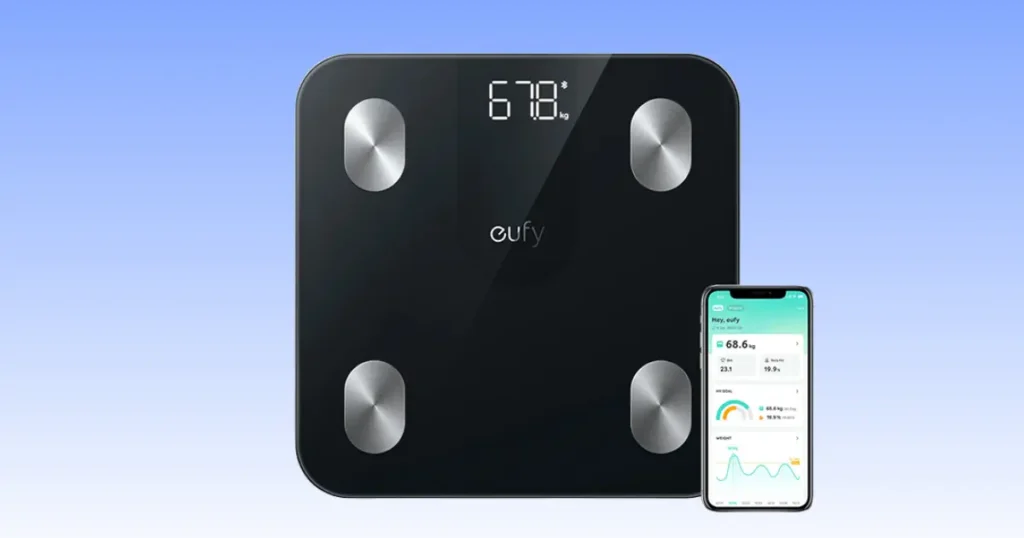
Stepping on your scale and getting nothing back is annoying, especially first thing in the morning. I’ve owned a Eufy Smart Scale C1 for over a year, and I’ve run into almost every issue on this list myself. This guide walks you through every fix, from dead batteries to Bluetooth sync failures and odd weight readings. We’ll start with the easy stuff and move into deeper troubleshooting, so you can get back to tracking your progress today.
Why Your Eufy Smart Scale C1 May Stop Working
Your scale is probably not broken. Most of the time, a small issue causes the problem. Weak batteries, a Bluetooth setting, or an uneven floor can all stop your scale from working the way it should. Start with the easiest checks first. Save the deeper fixes for later if the simple steps don’t help.
Most Common Symptoms
- Scale won’t turn on
- Blank display
- Display flashes then turns off
- Bluetooth won’t connect
- Sync fails with the EufyLife app
- Weight won’t stabilize
- Wrong body composition readings
- Error messages
- App crashes
- Scale keeps resetting
Quick Troubleshooting Checklist
Before you dig into any single problem, run through this short list. It solves most issues in under five minutes.
- Check the batteries
- Verify Bluetooth is on
- Restart your phone
- Confirm your phone’s operating system is supported
- Update the EufyLife app
- Place the scale on hard flooring
- Clean the electrodes
- Recalibrate the scale
Eufy Smart Scale C1 Not Turning On
A scale that won’t turn on is usually a power problem, not a hardware failure. Here’s how to work through it step by step.
Check the Batteries
Battery issues cause most power problems. Open the battery tray and check a few things.
- Battery orientation: make sure the plus and minus ends match the markings inside the tray.
- Replace with fresh AAA batteries, since low power is the top reason a scale won’t turn on.
- Avoid mixing old and new batteries. This creates uneven power and can cause the scale to act unstable.
- Use quality alkaline batteries. Cheap batteries drain faster and can leak over time.
Inspect Battery Contacts
If new batteries don’t fix it, look closely at the metal contacts inside the tray.
- Dirt or dust can block the connection.
- Corrosion appears as a white or greenish film and stops power flow.
- Bent terminals won’t touch the battery properly, even if the battery is fresh.
Clean Battery Compartment Safely
Use a dry cotton swab or a soft cloth to wipe the contacts. If you see corrosion, dip the swab in a small amount of rubbing alcohol and gently clean the area. Let it dry fully before putting batteries back in. Never use water, since moisture can damage the internal circuit board.
Perform a Power Reset
Remove the batteries completely and leave the tray empty for about 60 seconds. This clears any leftover charge sitting in the circuit. Put the batteries back in and try turning the scale on again. This simple reset fixes a surprising number of power issues.
Signs of Hardware Failure
If you’ve replaced the batteries, cleaned the contacts, and reset the power, and the scale still won’t turn on, you may be looking at a hardware issue. Common signs include a cracked case, a scale that smells burnt, or one that got wet recently. At this point, contact Eufy support instead of trying more fixes yourself.
Eufy Smart Scale C1 Display Not Working
A display problem can look scary, but it’s often simple to fix once you know what you’re looking at.
Blank LCD Screen
A totally blank screen usually points back to batteries or a loose connection inside the tray. Try the battery steps above first. If the screen stays blank with fresh batteries installed correctly, the LCD panel itself may have failed.
Flickering Numbers
Numbers that flicker or jump around while you’re standing on the scale often mean weak batteries or an uneven surface. Replace the batteries and move the scale to solid, level flooring before trying again.
Dim Display
A dim display is almost always a battery problem. It’s one of the earliest signs that your batteries are running low, even before the scale fully stops working. Swap in fresh batteries as soon as you notice this.
Frozen Screen
If the screen shows a number and just stays there, do a power reset. Remove the batteries for a full minute, then reinsert them. This clears whatever caused the screen to lock up.
Display Shows Partial Digits
Missing lines or partial numbers usually mean the LCD segments are damaged. This is a hardware issue rather than something you can fix with a reset. If your scale is still under warranty, this is a good reason to reach out to Eufy support.
Eufy Smart Scale C1 Bluetooth Not Connecting
A lot of connection problems show up right after a phone update, or when Bluetooth permissions quietly change in the background. The good news is that most of these take only a minute or two to fix.
Enable Bluetooth Permissions
Go into your phone’s settings and confirm the EufyLife app has full Bluetooth permission. On newer phones, this permission can reset itself after a system update without any warning.
Keep the Phone Nearby
Bluetooth Low Energy, or BLE, has a short range. Keep your phone within a few feet of the scale while pairing, and during every weigh-in for the most reliable sync.
Remove Old Paired Devices
If you’ve paired the scale with more than one phone, or reinstalled the app before, old pairing data can cause conflicts. Go into your phone’s Bluetooth settings, forget the scale, then pair it again fresh through the EufyLife app.
Restart Bluetooth
Turn Bluetooth off, wait about ten seconds, then turn it back on. This clears small connection glitches without needing a full phone restart.
Turn Airplane Mode On and Off
This might sound like an odd fix, but it works well. Turning Airplane Mode on and off resets all your phone’s wireless connections at once, including Bluetooth.
Restart Both Phone and Scale
If Bluetooth still won’t connect, restart your phone completely, then remove and reinsert the scale’s batteries. This gives both devices a clean slate to reconnect.
Check Bluetooth Compatibility
The Eufy Smart Scale C1 needs Bluetooth 4.0 or higher to connect properly. If you’re using an older phone, check its specs to confirm it supports BLE before assuming the scale is at fault.
Eufy Smart Scale C1 Not Syncing With EufyLife App
Getting a Bluetooth connection is one step. Getting your weight to actually show up in the app is another. Here’s how to fix sync issues specifically.
Confirm You Are Using the Correct Account
If you’ve ever used a different email address or logged out and back in, you might be checking the wrong account. Confirm you’re signed into the same EufyLife account that’s linked to your scale.
Update the EufyLife App
Outdated apps are one of the most common causes of sync failure. Check your app store for a pending update and install it before trying anything else.
Enable Location Permission (Android)
On Android phones, Bluetooth scanning requires Location permission to work correctly. This is a system requirement, not something Eufy controls. Turn on Location access for the EufyLife app in your phone settings.
Check Internet Connection
Your scale doesn’t need Wi-Fi to weigh you, but the app needs an internet connection to sync your data to the cloud and to other connected health apps. Confirm your phone has a stable connection before syncing.
Force Sync Manually
Open the EufyLife app, go to your device page, and look for a manual sync or refresh option. This forces the app to pull data instead of waiting for an automatic sync.
Sign Out and Back In
Signing out of your account and logging back in refreshes your session and often clears small sync bugs.
Reinstall the App
If nothing else works, delete the app completely and reinstall it from the app store. This clears any corrupted cache files that may be blocking sync.
What Happens to Previous Measurements?
Your past measurements are saved to your account in the cloud, not just on your phone. Reinstalling the app or switching phones won’t erase your history, as long as you sign back in with the same account.
Eufy Smart Scale C1 Gives Incorrect Weight
Accurate weight depends as much on where and how you stand as it does on the scale itself. Even a slightly uneven floor can throw off your reading by a pound or two.
Use Hard, Level Flooring
Tile, hardwood, and vinyl all work well. A wobbly or uneven surface confuses the scale’s sensors and gives you a shifting number instead of a stable one.
Avoid Carpet
Carpet is soft and uneven, and it’s one of the biggest causes of inconsistent readings. If your bathroom is carpeted, move the scale to the kitchen or a hallway with hard flooring for weigh-ins.
Stand Still
Movement while weighing yourself confuses the load cells inside the scale. Stand still with your weight evenly spread across both feet until the number locks in.
Weigh Yourself Consistently
For the most accurate trend over time, try to weigh yourself under the same conditions each time.
- Same day of the week
- Same time of day, ideally morning
- Similar clothing
- Before breakfast, after using the bathroom
Recalibrate the Scale
If your scale seems consistently off, a recalibration can help. Remove the batteries, wait a minute, reinsert them, and step onto the scale as soon as the display turns on. This resets its zero point.
Compare With Another Reliable Scale
If you’re still unsure whether your scale is accurate, compare it to a scale you trust, such as one at your gym or doctor’s office. A small difference of a pound or so is normal between two different scales.
Table: Common Causes of Incorrect Weight Readings
A quick comparison helps you find the problem faster before you consider replacing the scale.
| Problem | Likely Cause | Easy Fix |
|---|---|---|
| Weight changes every reading | Uneven floor | Move to tile or hardwood |
| Reading too high | Calibration issue | Reset the scale |
| Reading too low | Weak batteries | Replace the batteries |
| ERR message | Over capacity | Reduce load |
| Scale rocks | Uneven surface | Reposition the scale |
Body Fat and Other Measurements Are Wrong
Weight is only part of the story. Your Eufy Smart Scale C1 also estimates body fat, muscle mass, bone mass, and water percentage. These numbers can shift more than your weight does, and there’s a reason for that.
Understand Bioelectrical Impedance Analysis (BIA)
Your scale sends a tiny, safe electrical signal through your feet to estimate body composition. This method is called Bioelectrical Impedance Analysis, or BIA. It measures how fast the signal travels through your body, since fat and muscle conduct electricity differently.
Why Hydration Matters
Your hydration level changes how fast that signal travels. If you’re dehydrated, your body fat percentage may read higher than it actually is. Drinking a normal amount of water and weighing at a consistent time each day helps smooth this out.
Cold Feet Affect Measurements
Cold feet reduce blood flow and can throw off the electrical signal, leading to a less accurate reading. If you’ve just come in from outside, give your feet a few minutes to warm up before stepping on the scale.
Dirty Electrodes
The metal electrode plates on the scale need clean, direct contact with your skin. Dust, lotion, or dead skin buildup can weaken the signal and skew your results.
Athlete Mode Considerations
If you exercise heavily or have high muscle mass, turn on Athlete Mode in the EufyLife app. Standard mode can misread very muscular bodies as having a higher fat percentage than they actually do.
Why Body Composition Changes Throughout the Day
Your hydration, food intake, and activity level all shift throughout the day. That’s why your body fat percentage can look different in the morning versus the evening, even though your actual body hasn’t changed much at all.
Medical Limitations of BIA Technology
It’s worth knowing that BIA scales, including this one, give estimates rather than lab-grade measurements. They’re great for tracking trends over weeks and months, but they shouldn’t replace a proper medical body composition test if you need precise numbers for health reasons.
Eufy Smart Scale C1 Keeps Disconnecting
A scale that connects but then drops mid-sync is a different problem than one that won’t connect at all. Here’s what usually causes it.
Phone Battery Optimization
Many phones automatically restrict background activity for apps to save battery. This can cut off the EufyLife app’s Bluetooth connection mid-sync. Check your battery settings and exclude EufyLife from any optimization or restriction list.
Bluetooth Interference
Other wireless devices, like routers, speakers, and smart home gadgets, can interfere with your Bluetooth signal. If you have a lot of devices near your bathroom, try moving your phone closer to the scale during syncing.
Too Many Paired Devices
If your phone is paired with many Bluetooth devices at once, it can slow down or drop new connections. Unpair devices you no longer use regularly.
Restart Bluetooth Services
Turning Bluetooth off and back on refreshes the connection and often solves random disconnects.
Update Smartphone Software
Older phone software sometimes has Bluetooth bugs that get patched in later updates. Check for a pending system update on your phone.
Error Codes Explained
Your Eufy Smart Scale C1 shows short error codes instead of long messages. Here’s what each one means.
LO
This means your batteries are low. Replace them as soon as you see this code.
ERR
This usually shows up when the scale can’t get a stable reading, often because you stepped on unevenly or moved too soon.
Overload Message
This appears when someone exceeds the scale’s weight capacity. Reduce the load and try again.
Unstable Reading
This happens when the scale detects movement or an uneven surface. Stand still on a hard, flat floor and try again.
Measurement Failed
This general message can point to a few things: dirty electrodes, cold feet, or a brief Bluetooth hiccup during the reading. Try again after cleaning the electrodes and standing still.
Table: Eufy Smart Scale C1 Error Codes
Understanding each code saves time, since it points you toward a specific fix instead of random troubleshooting.
| Error | Meaning | Recommended Fix |
|---|---|---|
| LO | Low battery | Replace batteries |
| ERR | Measurement failed | Stand correctly |
| Overload | Weight exceeds limit | Reduce load |
| Bluetooth icon flashing | Waiting to pair | Open app nearby |
| No sync | Connection issue | Restart Bluetooth |
How to Reset the Eufy Smart Scale C1
A reset solves more problems than people expect. Here’s how to do each type correctly.
Soft Reset
Remove the batteries for about 60 seconds, then put them back in. This clears small glitches without erasing any data.
Battery Reset
This is the same as a soft reset, but it’s worth doing anytime the scale is acting strange, even if you’re not sure exactly what’s wrong.
Recalibration Process
After a battery reset, step onto the scale as soon as the display lights up. This lets the scale reset its zero point and recalibrate itself naturally.
Reconnect With the App
After any reset, open the EufyLife app and reconnect the scale through Bluetooth settings, since a reset can sometimes clear old pairing data.
Verify Measurements Afterward
Weigh yourself a couple of times after resetting to confirm the readings are stable and consistent.
How to Update the EufyLife App
Keeping the app updated prevents a lot of the bugs covered in this guide.
Android Steps
Open the Google Play Store, search for EufyLife, and tap Update if one is available. You can also turn on automatic updates in the Play Store settings.
iPhone Steps
Open the App Store, tap your profile icon, scroll to EufyLife, and tap Update. Automatic updates can be turned on under your iPhone’s App Store settings.
Why Updates Solve Bugs
Every update includes bug fixes for connection issues, sync problems, and display bugs reported by other users. Skipping updates means you keep running into problems that have already been fixed.
Compatibility After OS Updates
When your phone’s operating system updates, older app versions can sometimes lose compatibility. Updating EufyLife right after a phone update keeps everything working smoothly together.
When the Problem Is Your Phone Instead
Sometimes the scale is fine, and the real issue is sitting in your pocket.
Android Bluetooth Issues
Some Android phones have aggressive battery-saving features that interfere with Bluetooth apps running in the background. Check your phone’s app settings for any restrictions placed on EufyLife.
iPhone Bluetooth Permissions
iPhones require explicit Bluetooth permission for each app. If you denied this permission when first installing EufyLife, go to Settings, then Bluetooth, and turn it on for the app.
Storage Problems
A phone that’s nearly full on storage can cause apps to behave unpredictably, including crashing during sync. Clearing some space can fix this.
Background App Restrictions
Some phones limit how long apps can run in the background. If EufyLife gets closed automatically, it may miss the Bluetooth connection window during syncing.
Multiple User Accounts
If you share a phone with someone else and use separate user profiles, Bluetooth pairings don’t always carry over between profiles. Make sure you’re on the right profile when connecting.
Cleaning and Maintaining Your Smart Scale
A little regular care goes a long way toward keeping your scale accurate for years.
Clean Electrodes Properly
Wipe the metal electrode plates with a slightly damp cloth, then dry them fully. Avoid harsh cleaners, since they can wear down the plating over time.
Protect Sensors
Avoid dropping heavy objects on the scale or standing on just one edge, since this can damage the internal load cells.
Avoid Moisture
Keep the scale away from standing water and heavy humidity. If you keep it in the bathroom, dry it off after showers if water tends to splash nearby.
Store Correctly
Store the scale flat, not on its side or leaning against a wall, to avoid putting pressure on the internal sensors.
Battery Maintenance
If you won’t be using the scale for a while, remove the batteries. This prevents any leakage from damaging the compartment.
Monthly Maintenance Checklist
- Wipe down the glass and electrodes
- Check battery level
- Recalibrate if readings feel off
- Confirm the app is updated
- Test the Bluetooth connection
Table: Preventive Maintenance Schedule
Routine care keeps your sensors accurate and cuts down on surprise problems. These habits take just a few minutes.
| Task | Frequency | Why It Matters |
|---|---|---|
| Clean glass | Weekly | Better sensor contact |
| Check batteries | Every 3 months | Prevent power issues |
| Recalibrate | Monthly | Improve accuracy |
| Update app | Monthly | Fix bugs |
| Inspect battery contacts | Every 6 months | Prevent corrosion |
When to Contact Eufy Support
Most problems can be fixed at home, but a few situations call for professional help.
Signs the Scale Needs Professional Service
- Dead after a battery replacement
- Cracked sensor or glass
- Water damage
- Repeated hardware errors
- LCD failure that won’t clear with a reset
Information to Prepare Before Contacting Support
Having these details ready speeds up the process significantly.
- Model number
- Purchase date
- App version
- Phone model
- Operating system
- Photos or video of the issue
USA Expert Advice: Small Habits Make Smart Scales More Accurate
Physicians and dietitians who track patient weight over long periods tend to agree on one thing: consistency beats obsession. Rather than chasing the exact number on any single day, they encourage patients to weigh in under the same conditions each week and pay attention to the overall trend, not daily ups and downs. This lines up with what I’ve noticed using my own scale. The number fluctuates day to day for all kinds of small reasons, but the trend line over a month tells the real story.
Expert Recommendations
- Weigh at the same time each morning
- Keep the scale on hard flooring
- Don’t obsess over daily fluctuations
- Track long-term trends instead of single readings
Real-Life Troubleshooting Example
Monday Morning Before Work
A friend of mine in Denver, Colorado, called me one morning because her scale kept showing a different weight every few seconds. We walked through it together over the phone. First, we replaced the batteries. Then we moved the scale off her thick bathroom rug and onto the tile by her kitchen. Last, we wiped down the electrodes with a soft cloth. By the third try, the readings were steady and consistent. It felt like a small win before her coffee even finished brewing. Sometimes the simplest fix really is the right one.
Frequently Asked Questions
Why is my Eufy Smart Scale C1 not turning on?
This is almost always a battery issue. Replace the batteries with fresh alkaline AAAs, check the contacts for corrosion, and try a power reset by removing the batteries for a full minute.
Why won’t my scale connect to Bluetooth?
Check that Bluetooth permissions are enabled for the EufyLife app, keep your phone close to the scale, and confirm your phone supports Bluetooth 4.0 or higher. Restarting both devices often clears the issue.
Why isn’t my weight syncing to the EufyLife app?
Update the app, confirm you’re signed into the correct account, and check your internet connection. On Android, make sure Location permission is turned on, since it’s required for Bluetooth scanning.
Can weak batteries affect body fat readings?
Yes. Low battery power can weaken the electrical signal used for body composition readings, leading to inaccurate body fat, muscle, and water percentage results.
How do I recalibrate my Eufy Smart Scale C1?
Remove the batteries for about 60 seconds, reinsert them, and step onto the scale as soon as the display turns on. This resets the scale’s zero point.
Why does my weight change every time I step on the scale?
This usually points to an uneven or soft surface, like carpet. Move the scale to hard, level flooring, such as tile or hardwood, and stand still while it takes the reading.
When should I replace my Eufy Smart Scale C1 instead of repairing it?
If the scale shows physical damage, water damage, or repeated hardware errors after you’ve tried batteries, cleaning, and resets, it’s time to consider a replacement or contact Eufy support for a warranty check.
Final Recommendation
After spending real time troubleshooting this scale, both for myself and for friends, my honest recommendation is to start small every time. Most problems trace back to batteries, Bluetooth permissions, or the surface you’re standing on, not a broken scale. Work through the checklist at the top of this guide before assuming the worst. If you’ve tried everything here and the scale still isn’t working, don’t hesitate to reach out to Eufy support with your model number and a clear description of the problem. In most cases, though, you’ll be back to accurate readings within a few minutes.

Shakitul Alam is the CEO, Owner, and Co-founder of BMI Calculator Women AI. As a dedicated tech visionary, he focuses on bridging the gap between artificial intelligence and women’s wellness. Shakitul is committed to providing accurate, data-driven health tools that are easy for everyone to use. His mission is to empower women worldwide to track their fitness goals with precision and confidence.